
Understanding open shift requests
Can Volunteers select their shifts?
Yes. You can set up a schedule with open shifts and let your volunteers select the shifts that suit them. This is especially beneficial for event-based volunteering, where you have a large group of volunteers to schedule.
When a volunteer selects a shift, it's considered "requested" until you approve it.
Setting up the open shifts
In the program schedule, set up the open shifts that volunteers can select from. This can be done before or after volunteers are added to a program. Learn how to add open shifts, including the available options.
Eligibility for an open shift
If your program has multiple roles, please keep in mind that volunteers can request only open shifts assigned to their specific role. For example, Role A volunteers cannot request shifts in Role B. This is especially useful if you have volunteers with specific skills, such as technical support.
You can assign volunteers a secondary role, allowing them to select from open shifts across both roles.
You can tighten eligibility by adding a certificate requirement: for example, adding a First Aid Certificate as an additional requirement on a shift in Role A means only volunteers in Role A, or have Role A as a secondary role AND have a First Aid Certificate in their profile will be able to request the shift. 📖 You can learn more about roles and secondary roles.
If any volunteer from any role can fill a shift, add it under 'Unassigned'. This could be useful if, for example, there is an information session that all volunteers need to attend.

In the above example, volunteer Ally will be able to request any of the 'General Volunteer' role open shifts as well as the open shift under the 'Unassigned' role.
What does the volunteer see?
When ready, the schedule can be emailed to volunteers. They will receive an email with a link to a unique page with available open shifts they can request.

In the above example, the volunteer can see any shifts they have requested (1) and the available open shifts they can request, organised by shift title (2). The volunteer can view shift information (3) before requesting the shift.
How to respond to requested shifts
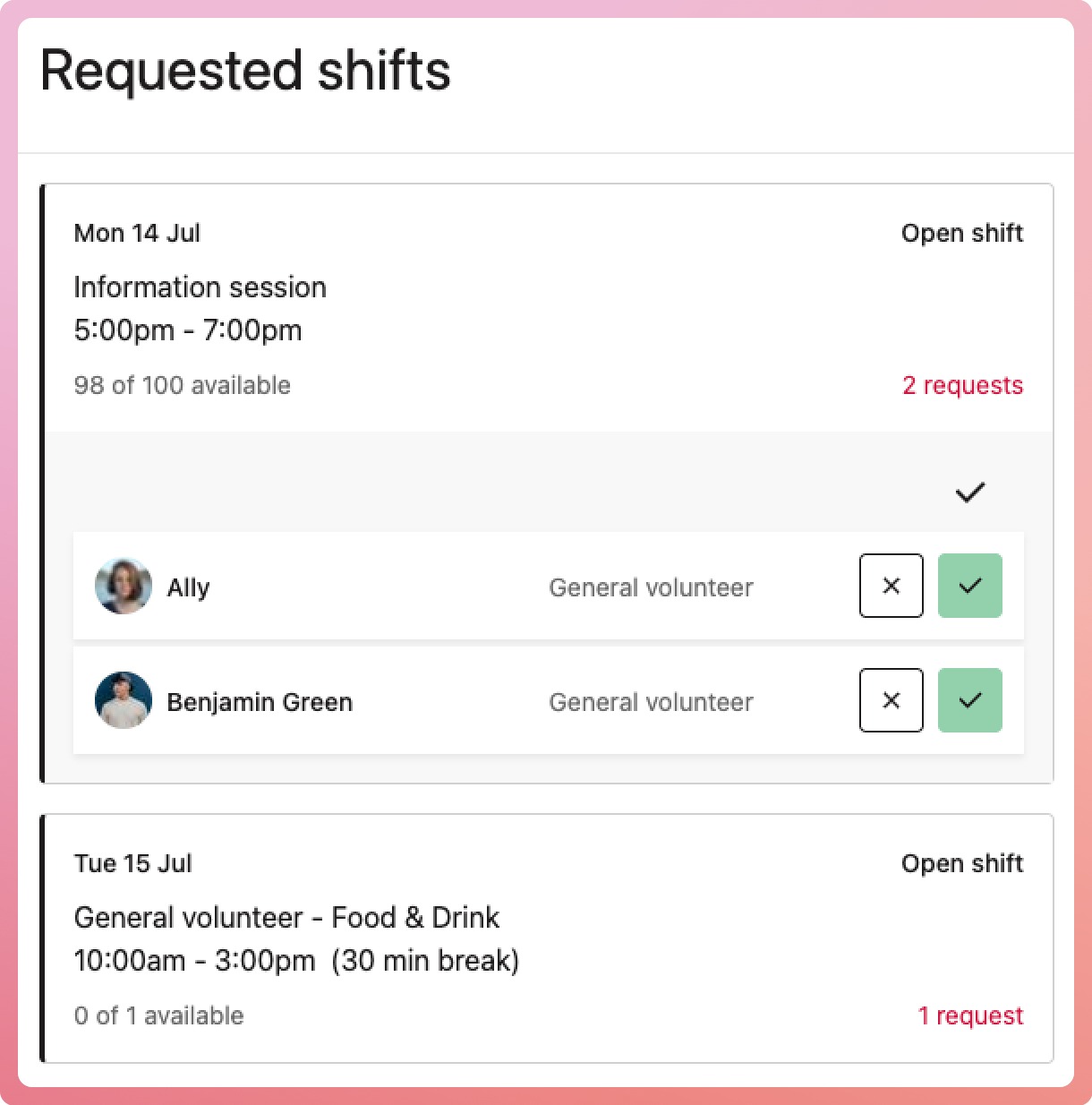
When a volunteer requests a slot on an open shift, you will need to approve or deny the request.
When a request comes in, you will see a notification in the program schedule on the Requested Shifts button.
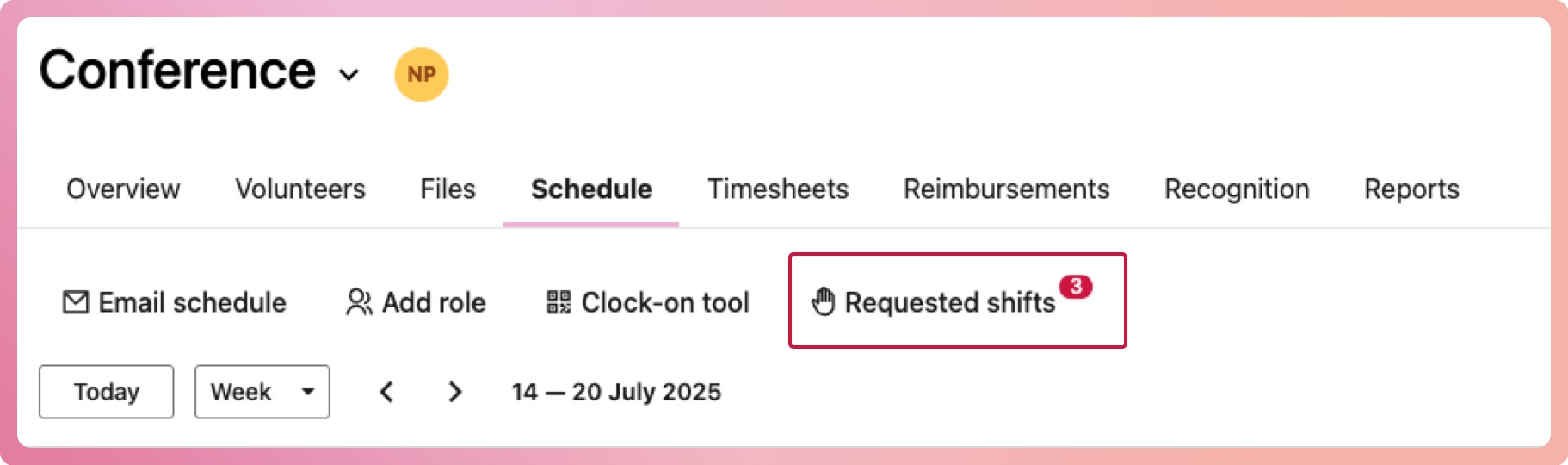
- Select the Requested shift button; this will trigger the requested shift pane to slide out
- Select either to approve or deny each request
- The outcome will show on both the program schedule and the volunteer's schedule
When you deny a request, the 'slot' allocated to it becomes available to other volunteers.
Does the volunteer know the outcome?
Yes. Volunteers receive a notification message indicating the request outcome.
