
Open shift slot allocation
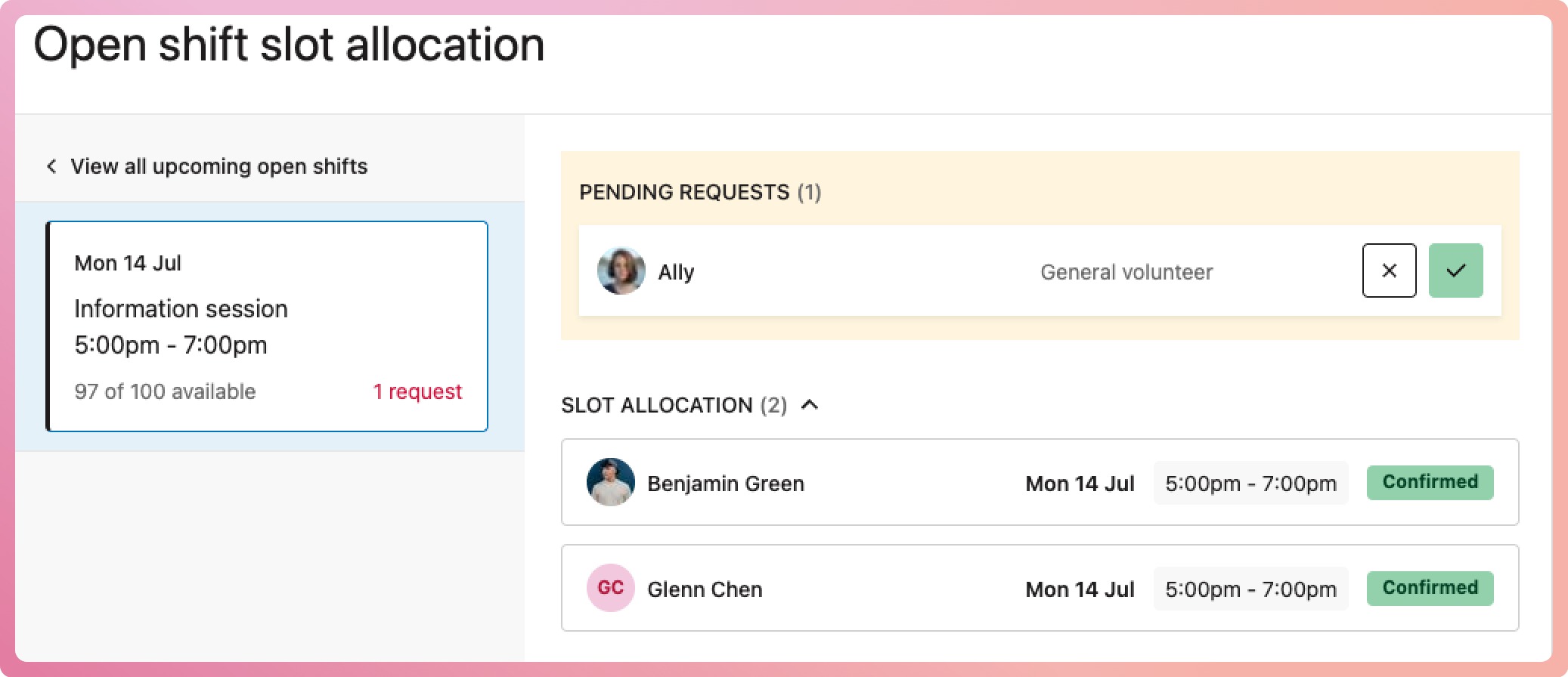
Quickly see which volunteers have been assigned a shift slot
- Select the open shift
- In the popover, select the link slot allocation. This will trigger the open shift slot allocation slide-out
- See which volunteers have been allocated a shift slot, as well as any pending requests

Assigning an open shift slot to a volunteer
- Select the open shift on the schedule
- Open the context menu (three dots on the top right of the popover)
- Select the Assign slot option
- Pick the volunteer to assign the slot to
- Select the appropriate shift status

✋🏿 Careful: if you assign an open shift to a volunteer whose primary role isn't the same as the shift's role, you will "pull" the volunteer into that role, and it becomes their secondary role. Learn more about roles.
Allow volunteers to assign themselves to shifts
Yes, volunteers can view and request eligible shifts on their schedule.
📖 Learn more about how to set this up.
Unassign an open shift slot from a volunteer
There are several ways to handle situations in which an open shift assigned to a volunteer needs to be removed. Your actions depend on the circumstances.
|
Reassign the shift to another volunteer |
This changes the slot allocation from one volunteer to another. It is best done when both volunteers know that this will happen or before shifts are sent. |
|
Release the slot |
This will remove the shift from the volunteer, and the open shift will gain back the slot, ready to be assigned to another volunteer. It is best done when the volunteer knows that this will happen or before shifts are sent. |
|
Change the status to cancelled |
The volunteer will see that the shift has been cancelled on their schedule. It's best done when you need to cancel the shift. Once cancelled, you can opt to send a message to the volunteer to provide more context. The slot will be released back to the open shift for reassignment to another volunteer. |
|
Delete the shift |
The volunteer will not be notified; the shift will disappear, and the slot will no longer be available. This should only be done when you first set up the shift. |