
Open shifts
What is an open shift?
An open shift is a shift that has not yet been assigned to a volunteer. You can use them to your advantage in a few ways:
- If there will be more than one volunteer doing the same shift, it can be set up as one open shift with multiple shift "slots", then assign the slots to the volunteers. Not only does it save time by avoiding the need to create a separate shift each time, but it also cascades those changes to the assigned slots when you change your original open shift details.
- You can use them to set up your schedule before assigning shifts, for example, if your volunteers are not yet onboarded.
- Use them to let volunteers claim shifts that suit them.
How to create an open shift
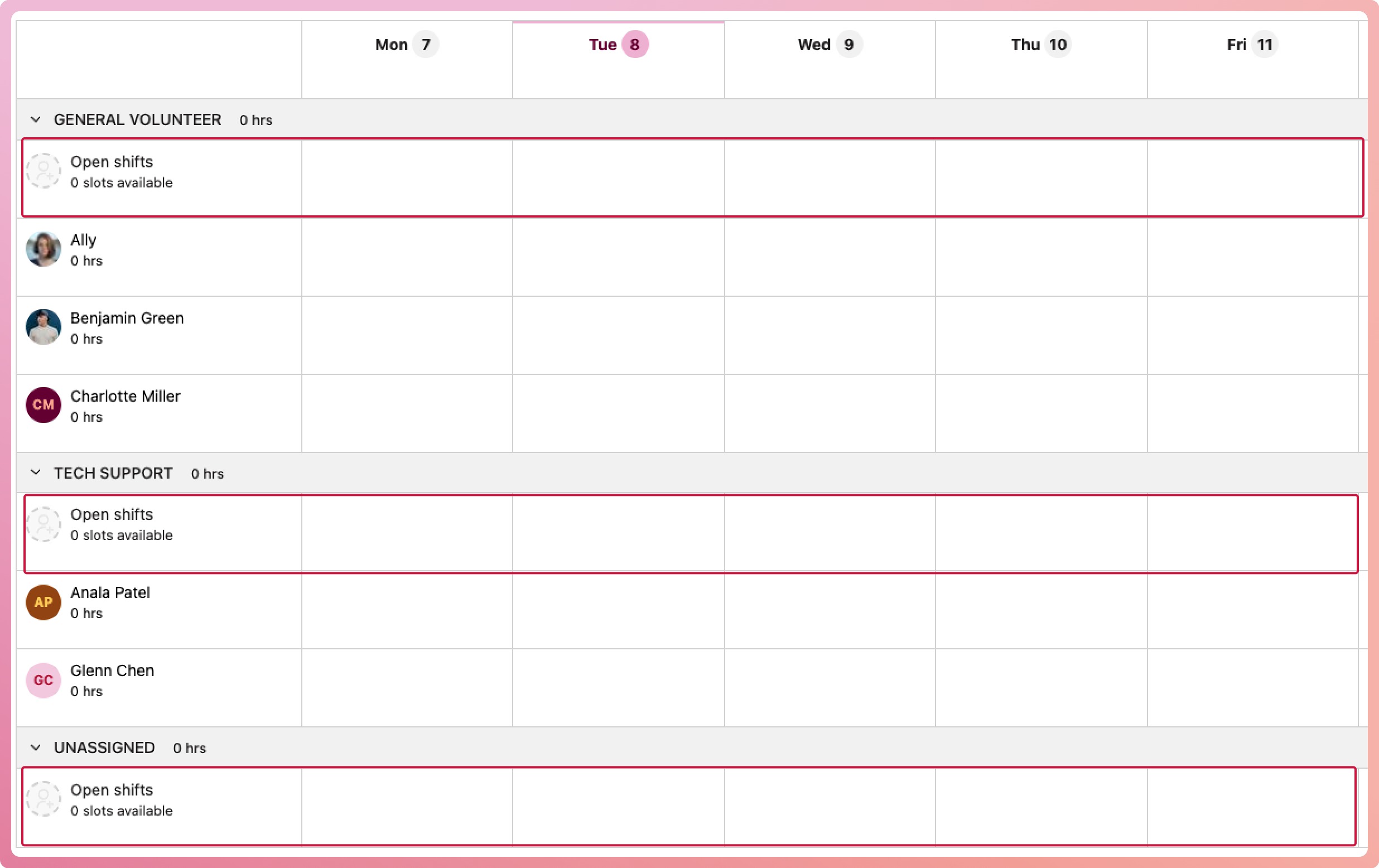
- Select the open shift cell corresponding to the role and day for which the shift will be scheduled. A slide-out panel will appear.
- Fill in the shift details (see below for more information on setting the shift details) and select the Save button at the bottom of the panel.
- Done! Repeat for all shifts needed.
Setting the shift details
More information on what is available when adding an open shift:
|
Detail |
What it is |
Example |
|
Number of slots |
How many volunteers are needed for this shift |
1 for a single volunteer, 5 for multiple volunteers doing the same shift |
|
Shift title |
This will appear on the schedule, and for the volunteer, it should be something that makes sense to both. When there are multiple shifts with the same shift title, the volunteer will see them as categories. Optional. |
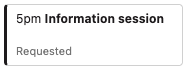
"Information session" is the shift title |
|
Role |
You can use roles to group your volunteers |
"General Volunteers", "Tech Support" |
|
Date and Time |
Select the start and finish times of the shift. |
|
|
Break |
Select if the volunteer will have a break during the shift. |
15 minutes |
|
Repeat |
Choose a repeat pattern if this shift will be recurring |
Repeats every Thursday starting from Friday, 9 October 2026 |
|
Selection settings |
||
|
Requests require approval |
Turning on gives you control over approving volunteers who request a slot. These appear as requested shifts on the schedule. Turning it off lets the volunteer claim a slot immediately. These appear as confirmed shifts on the schedule. |
|
|
Additional requirements |
Turning on and selecting a certificate will restrict which volunteers can claim a spot to those who hold this certificate. |
Selecting "First Aid Certificate" means only volunteers with a First Aid Certificate in their profile will be able to see and claim a slot. |
|
Add more detail options |
||
|
Activities |
Add what the volunteer will be expected to do during the shift. The volunteer will be able to see this when requesting the shift. Optional. |
Example activities: Check off registrations, Hand out lanyards, take last-minute registrations |
|
Note for the volunteer |
Add any extra information needed for this shift that the volunteer will need. The volunteer will be able to see this when requesting the shift. Optional. |
"Please wear your conference polo issued at the information session" or "Please meet at door B 10 mins prior to your shift" |
What shift details does the volunteer see?
If the schedule is sent to the volunteers, here is what they will see:
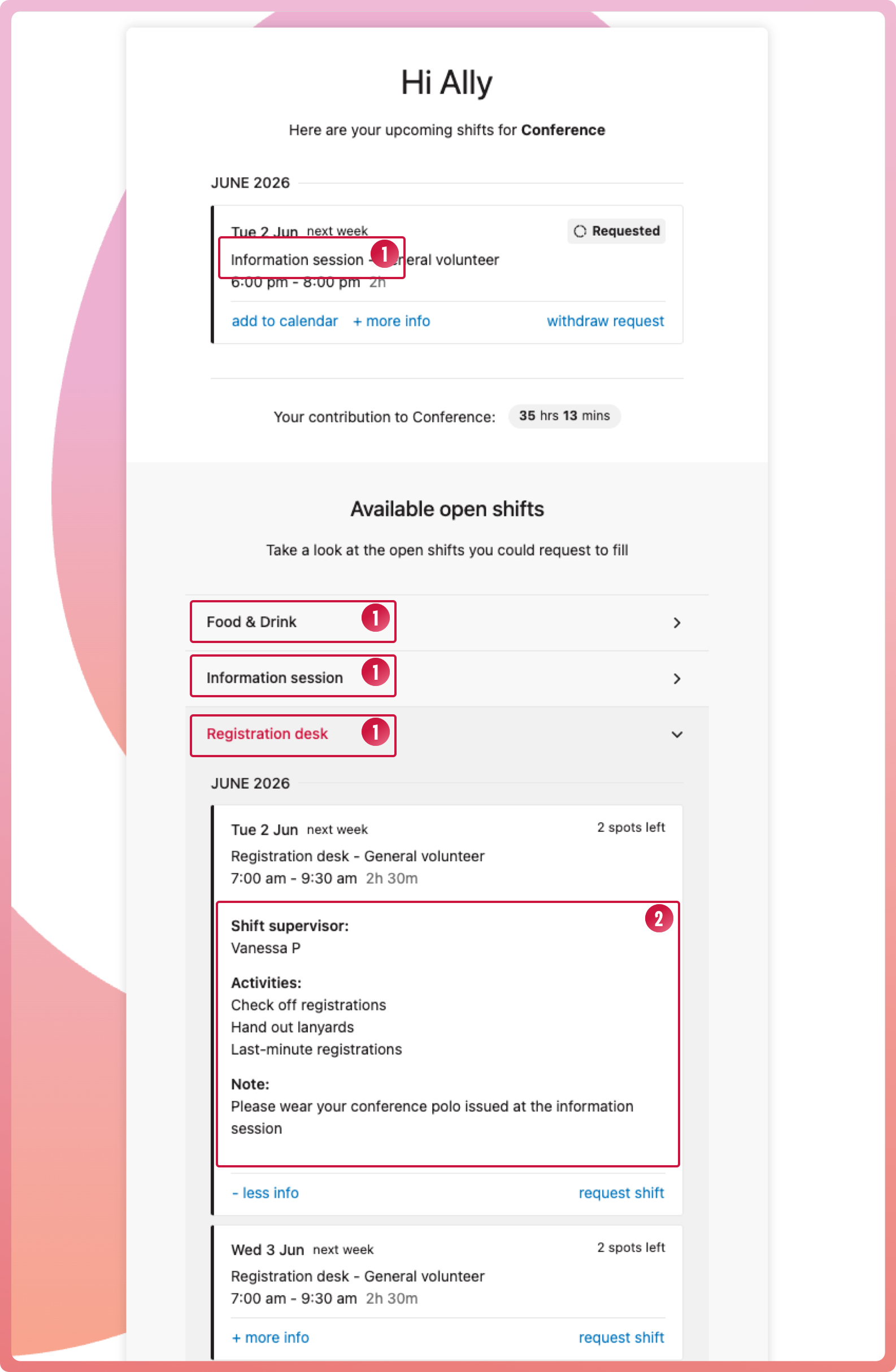
(1) Where shift titles appear on the volunteer view. (2) Where the activities and notes appear if added. The volunteer selects the +more info link to toggle visibility.