
How to edit, reassign or delete a shift
How to edit a shift
- Select the shift cell.
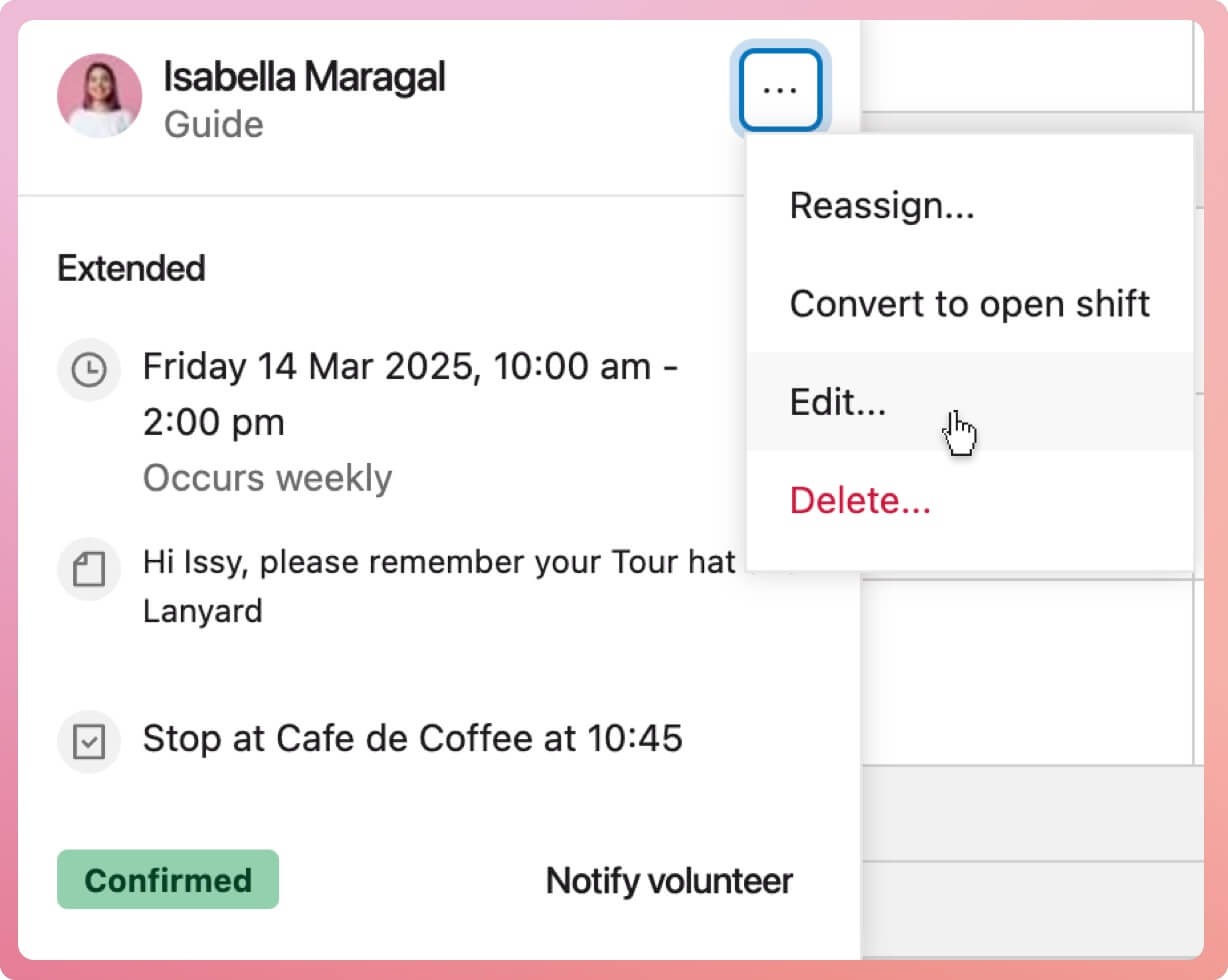
- When the shift popover appears, select the ellipses icon at the top right. This will activate a context menu.
- Select Edit to bring up the shift slide-out again.
How to reassign a shift from one volunteer to another
- Select the shift cell.
- When the shift popover appears, select the ellipses icon at the top right. This will activate a context menu.
- Select Reassign. This will trigger a modal
- Enter the volunteer who will be taking over this shift
Note: If the shift is part of a recurring series, make sure to select which shifts in the series will be reassigned.
How to unassign a shift to be assigned later
This is useful when you don't yet know who will be assigned to the shift. Volunteers with access to their schedules have the opportunity to request this shift
- Select the shift cell.
- When the shift popover appears, select the ellipses icon at the top right. This will activate a context menu.
- Select Convert to open shift
Note: If the shift is part of a recurring series, make sure to select which shifts in the series will be reassigned.
How to delete a shift
- Select the shift cell.
- When the shift popover appears, select the ellipses icon located top right; this will activate a context menu
- Select Delete
⚠️ Tip: If you had previously notified the volunteer of this shift, it is better to change the status to cancelled and notify the volunteer