
Communicating with volunteers
We have a few ways to communicate with your volunteers. All are via email currently.
Send a message to one or more volunteers
Firstly, navigate to your list of volunteers, either My Volunteers or your program list of volunteers
- Select volunteer(s) from the volunteer list by checking their checkbox in the leftmost column
- When the black bulk action bar appears, select the Send a message button
- In the New message modal, add a subject and message
- Select the Send button at the bottom of the modal to send the message out
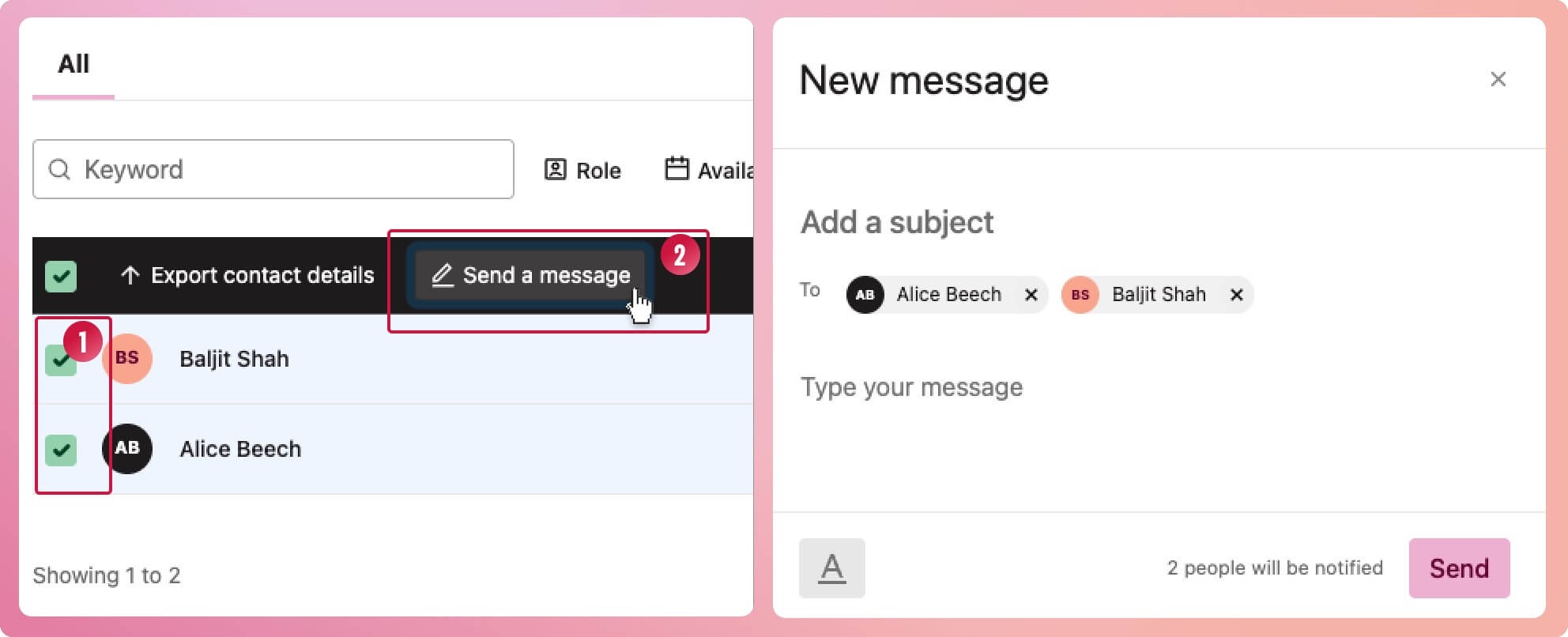
Tip: You can add links to files you have uploaded. Here is how.
What about everyone in the list?
You can select everyone in the list to bulk message them all by:
- Selecting at least one volunteer checkbox
- When the black bulk action bar appears, so too does the 'select all' floating action towards the bottom. Select the button to select all volunteers

Send volunteers their schedule
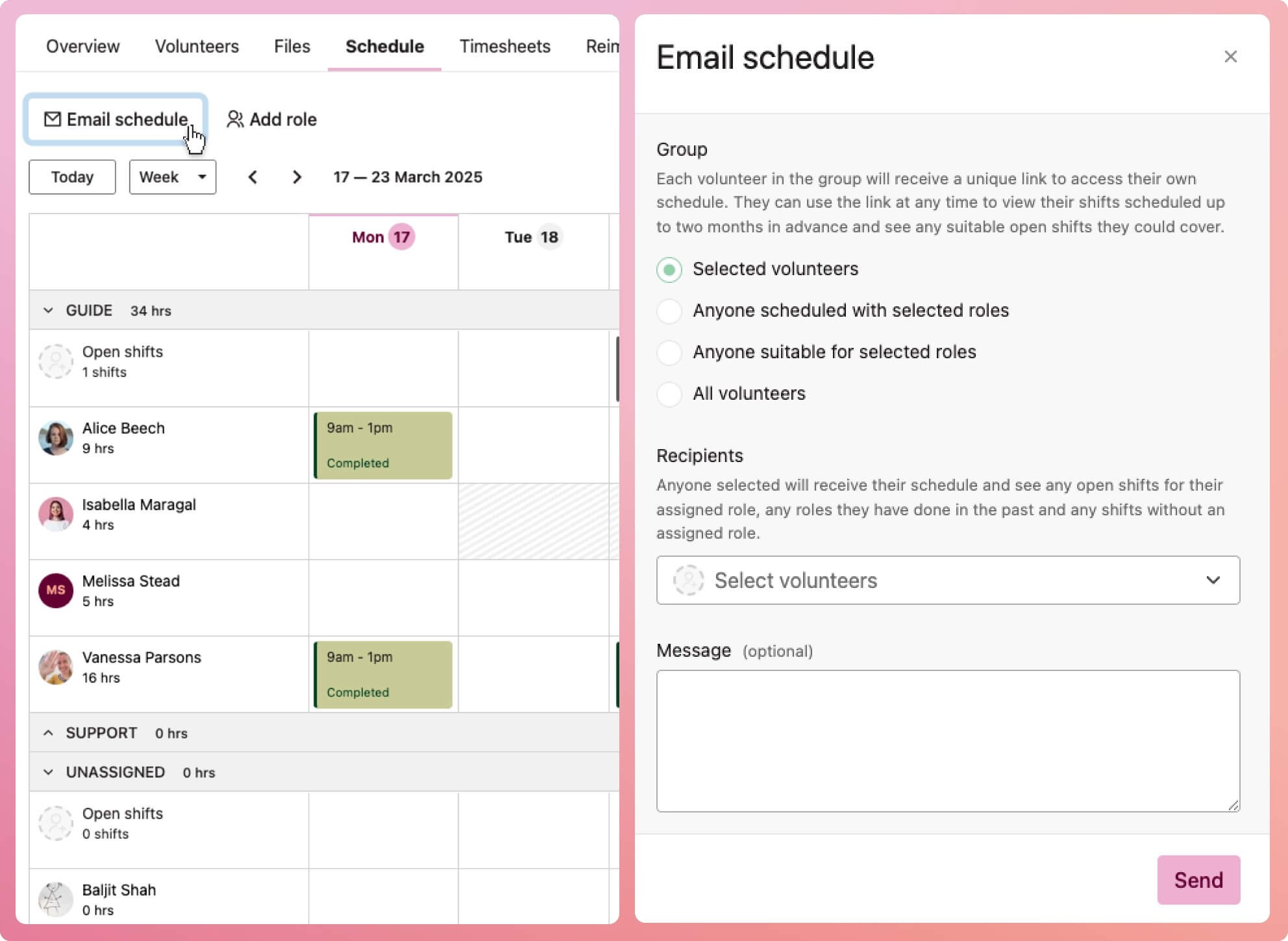
- Select the Email schedule button
- When the Email schedule modal appears, choose a group to send to
- Select the recipients (not needed if you are sending to all volunteers)
- Add a message to the volunteers (optional)
- Select the Send button to finalise
What the volunteer receives when you send them their schedule
Each volunteer in the group will receive a unique "tokenised" link to access their schedule. They can use the link at any time to view their scheduled shifts and see any suitable open shifts they could cover. From their schedule, volunteers can confirm, decline, or cancel an upcoming shift. They can also request an open shift listed.

- The volunteer's name and program name
- An assigned shift that needs the volunteer to confirm
- Confirmed shift
- A requested open shift
- Number of hours contributed to the program
- List of open shifts
Send a volunteer a notification about a shift
Perhaps an upcoming shift has changed or was added at the last minute; you can notify the volunteer about just this shift.
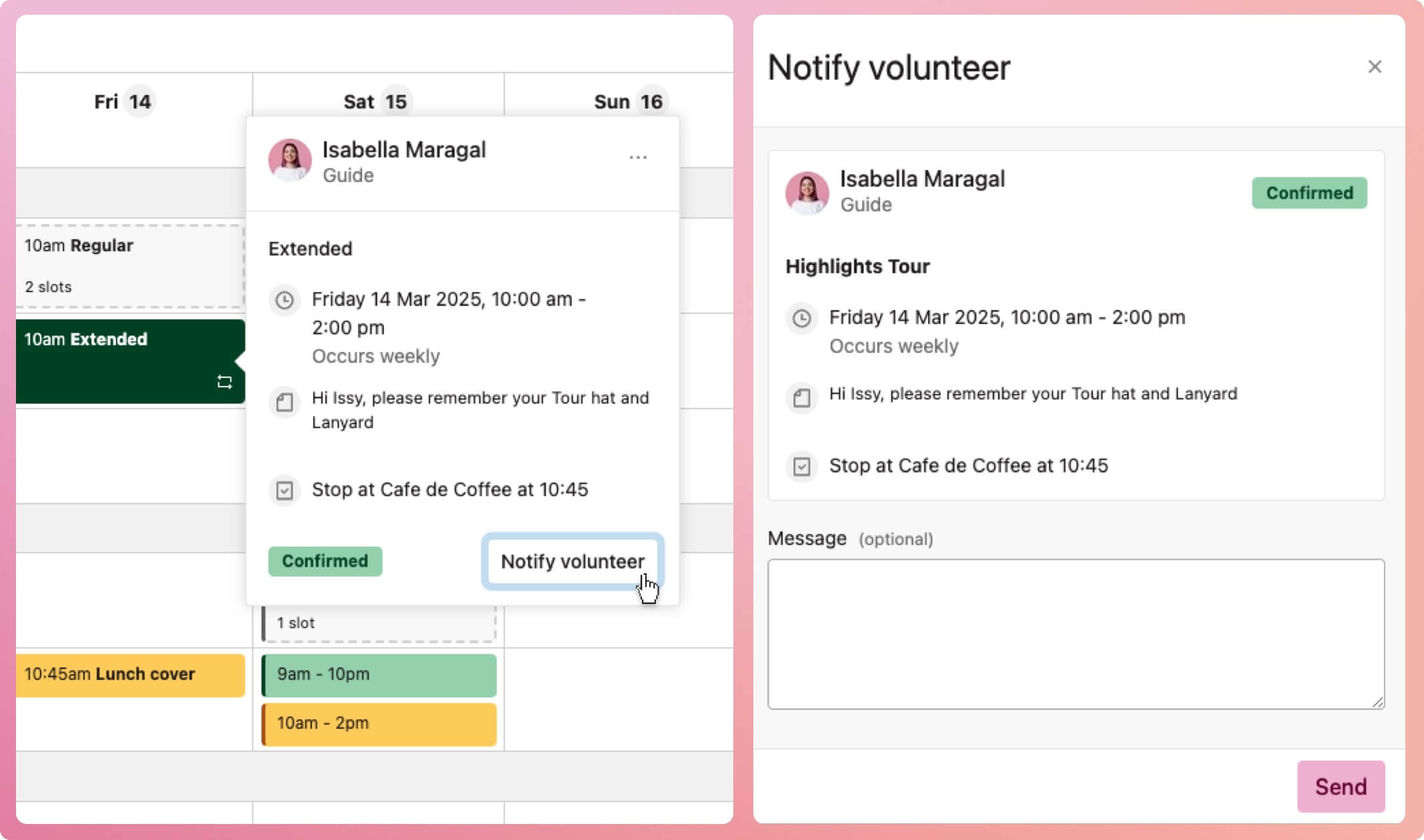
- Select the shift on the schedule.
- When the shift popover appears, select the Notify volunteer button in the bottom-right corner.
- When the Notify volunteer modal appears, type a message
- Select the Send button at the bottom of the modal to finalise
Auto shift reminder emails
If you want to send automatic reminders of shifts, you can set this up to send up to two email about each shift.
Only Essential and Premium users can send automatic shift reminders
- Select the down chevron beside the program heading
- From the context menu that appears, select Schedule settings
- In the modal that appears, turn on one or both of the Volunteer shift notifications
- Set the intervals at which you want the reminders sent. For example, 5 days prior and 4 hours prior to the shift's start time
See what's been sent
Access a log of the messages sent to volunteers in the following ways:
-
From the volunteer's record
View messages sent to a particular volunteer by navigating to the Messages tab of their record
-
All messages sent from a program
Navigate to the program and select the Messages tab to see all communication going out to all volunteers from the program
-
All messages sent in the organisation
Navigate to My organisation and select the Messages tab to see all communication going out to all volunteers across your organisation