
Quick start guide to adding volunteers
There are a few ways to add volunteers to INVOLVE, so let's explore them so you can get up and running in no time.
Creating a volunteer record from My Volunteers
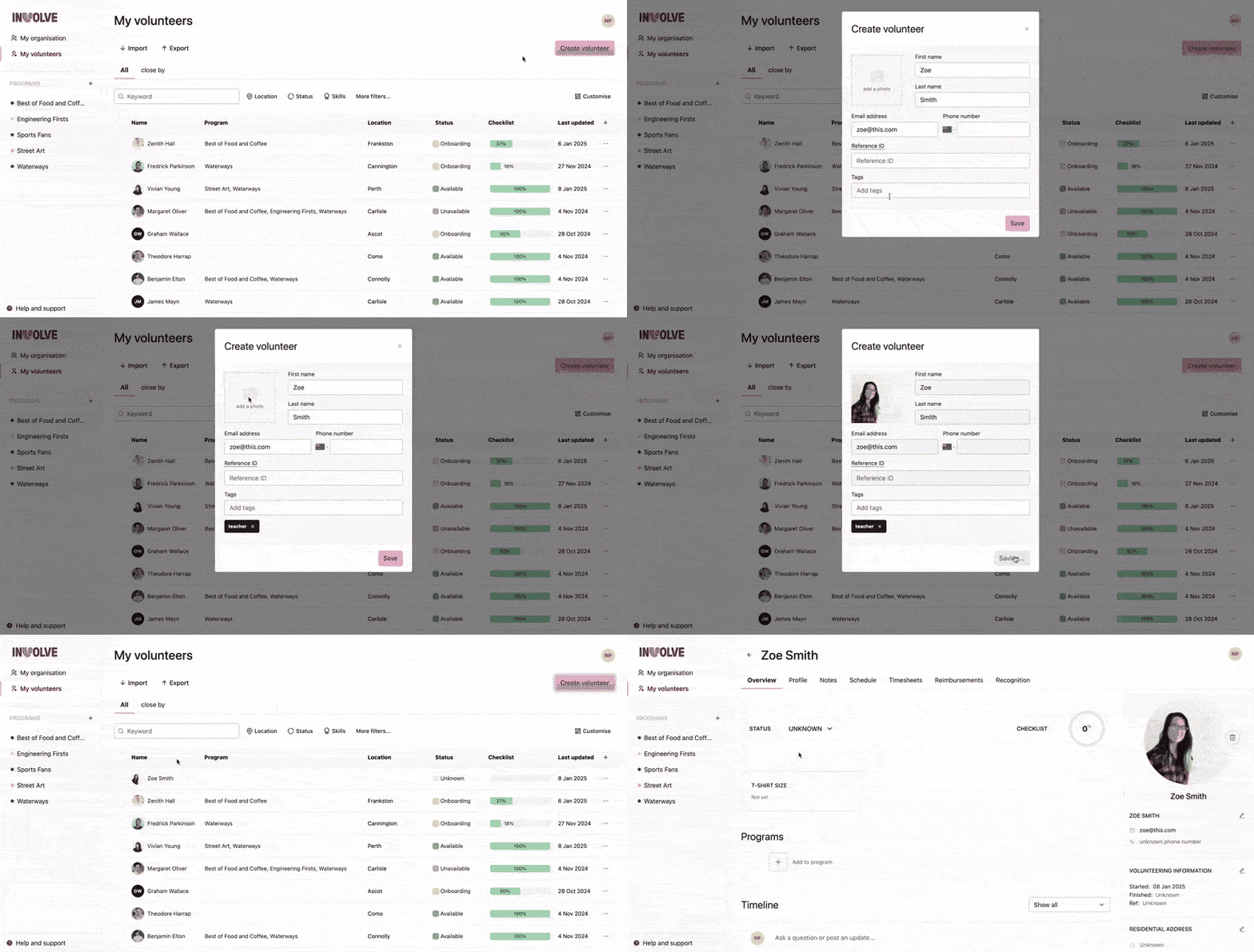
- Navigate to My volunteers
- Select the Create Volunteer button
- Fill in at least one field to identify the volunteer in the modal that appears
- Select the save button at the bottom of the modal
⭐ Done!
Note: if your role is Program Coordinator, you will not be able to add volunteers
Explore the volunteer's profile
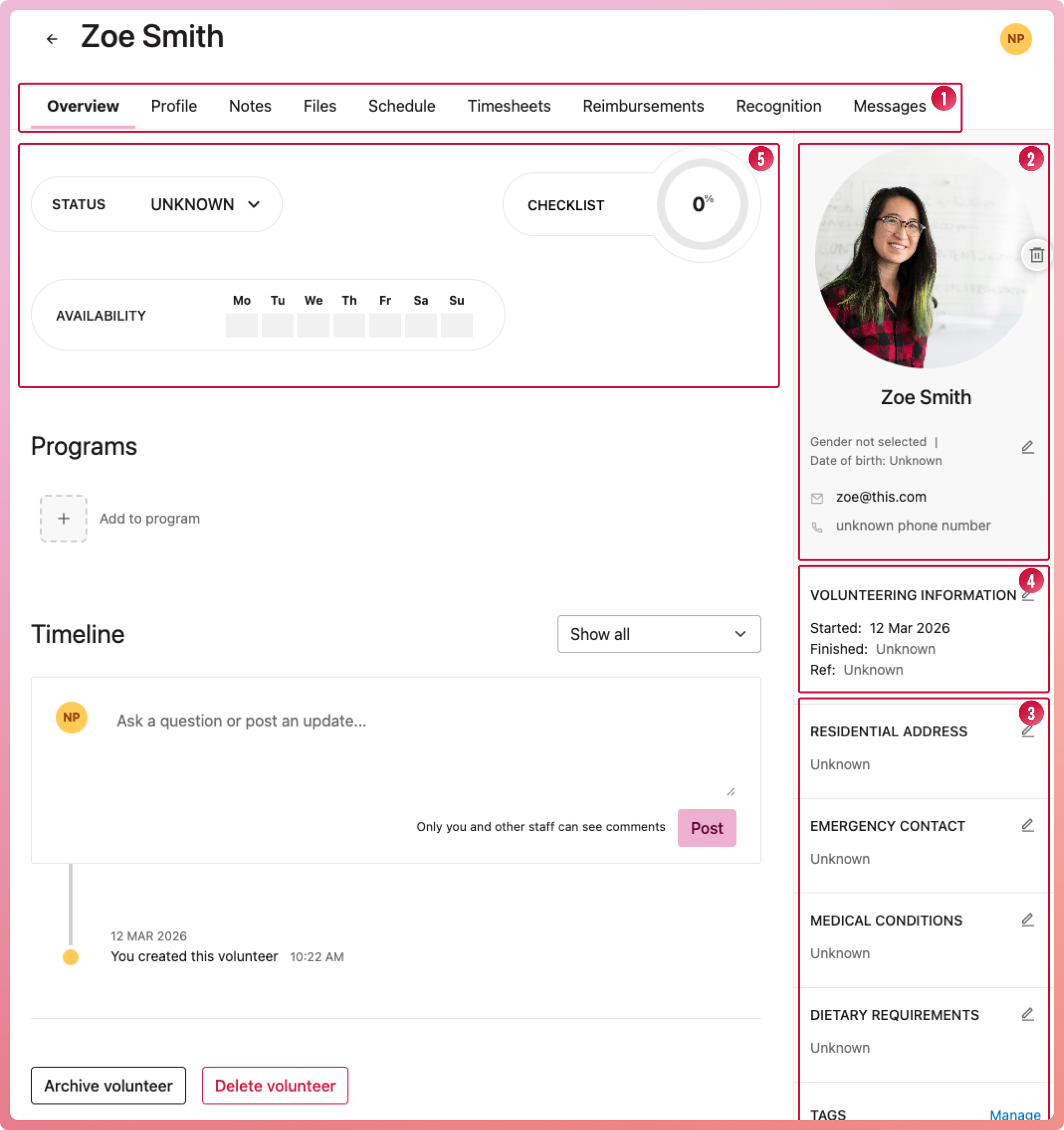
Once you have added your volunteer, you can select them from the list to open their record and add as much or as little information as needed or is available. Each volunteer has a sub navigation (1) of views to house their full record. Their data is stored in four of these views:
- Overview - includes the volunteer's identifying information, such as their name, email, date of birth, and avatar (2), as well as personal details like their address, emergency contacts, and dietary requirements (3), and their volunteer tenure (4). It also shows their availability, status, and checklist progress (5), as well as the programs they are part of.
- Profile - has the volunteer's detailed information, such as skills, interests, volunteering and work experience, education, certificates, and a log of training they receive.
- Notes - can be used in numerous ways, and only you and your staff can see them.
- Files - Option to upload any documents associated with the volunteer, for example, their completed volunteer agreement. We discourage uploading anything personal, like copies of identity documents.
The other five tabs relate to their volunteering and will be populated as they interact with your organisation. If needed, you can import old timesheets, reimbursements, and recognitions into the relevant tabs.
Onboarding Volunteers
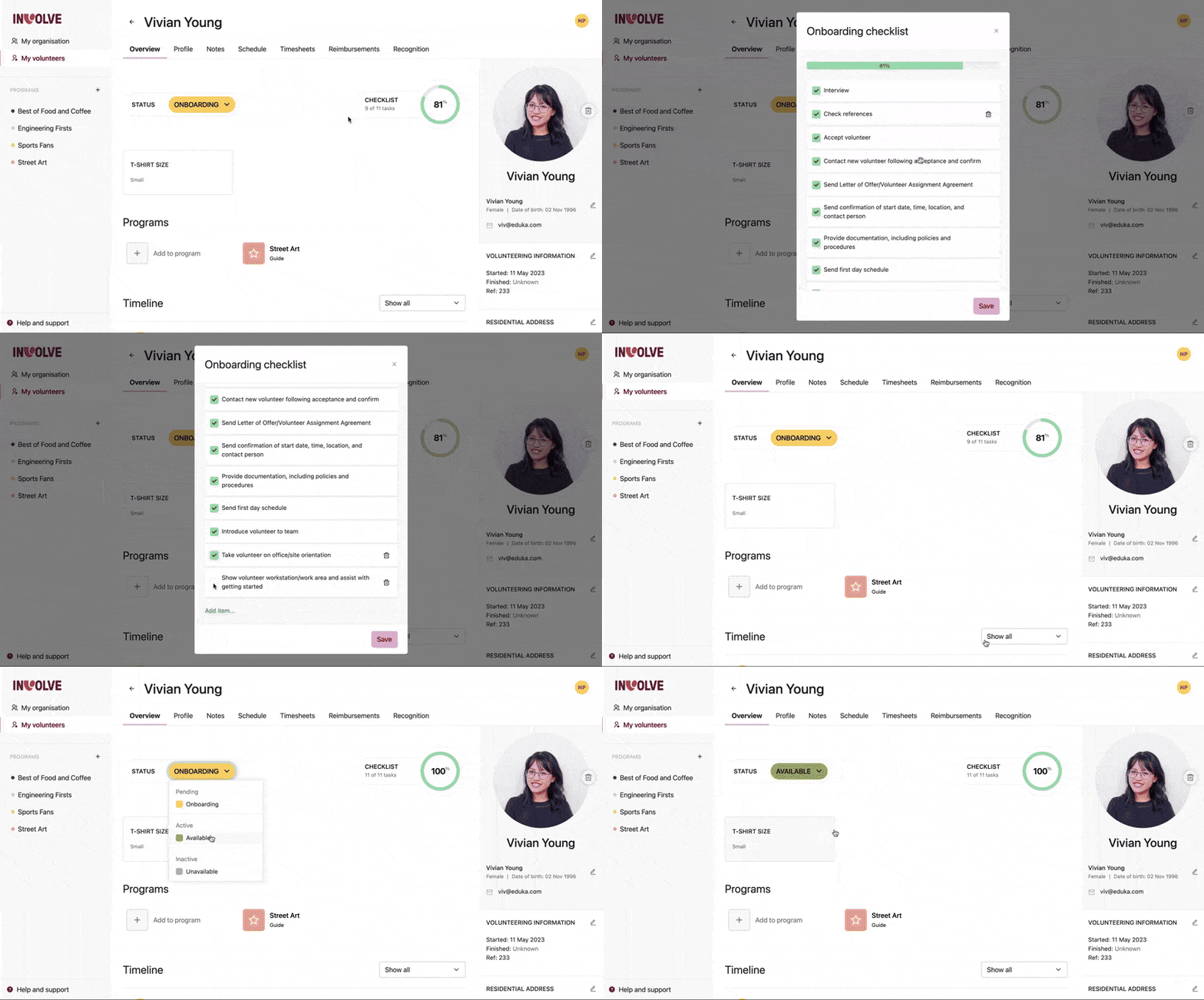
Most organisations working with volunteers require a few formalities to be checked off before allowing the volunteer to begin. For example, they may need to present their Police Clearance certificate and have a safety briefing or other training required by your organisation. These can all be itemised and checked off the onboarding checklist. You can also utilise the volunteer status to help group these volunteers who are still 'onboarding'.
Onboarding checklist

The checklist is unique to your organisation, and you can set what items will appear for your volunteers as a template in the My Organisation settings. You can also add or remove any item per volunteer, making them quite powerful. The checklist can be accessed from the My Volunteers view by selecting the Checklist cell in the list of volunteers or from the volunteer's record.
Volunteer status
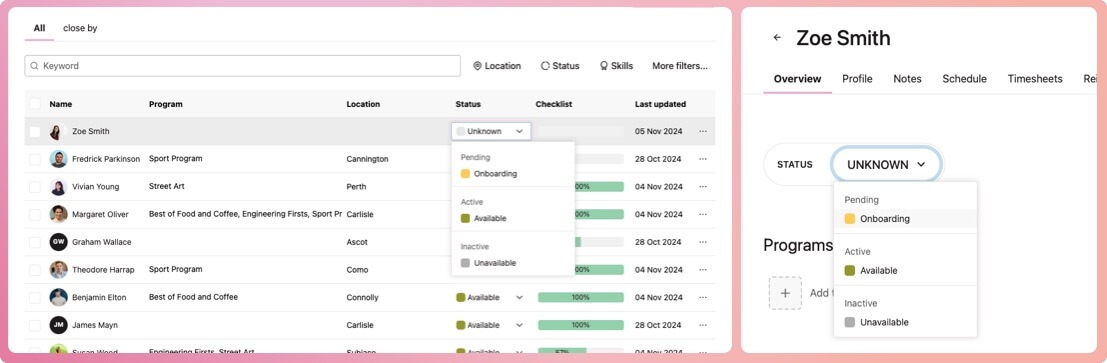
To begin with, the status of a new volunteer is set at 'unknown'. You can change this from either the My Volunteers view or the Volunteer Record view. By default, INVOLVE provides three statuses, but these can be changed, removed, or added to in the My Organisation settings.
Importing Multiple Volunteers at Once
You can use the import function to bulk-upload volunteer data from a CSV file. We have included a neat example download to help you know exactly how to organise your file. Once the data is uploaded, our data mapping model will prompt you to confirm that the correct data is being directed to the correct fields.
The import function is located in My Volunteers and also in each program's volunteers view.