
Exporting volunteer information
Choose the type of information that you need to be exported from any of your volunteer lists. These will be downloaded as a CSV.
How to export information
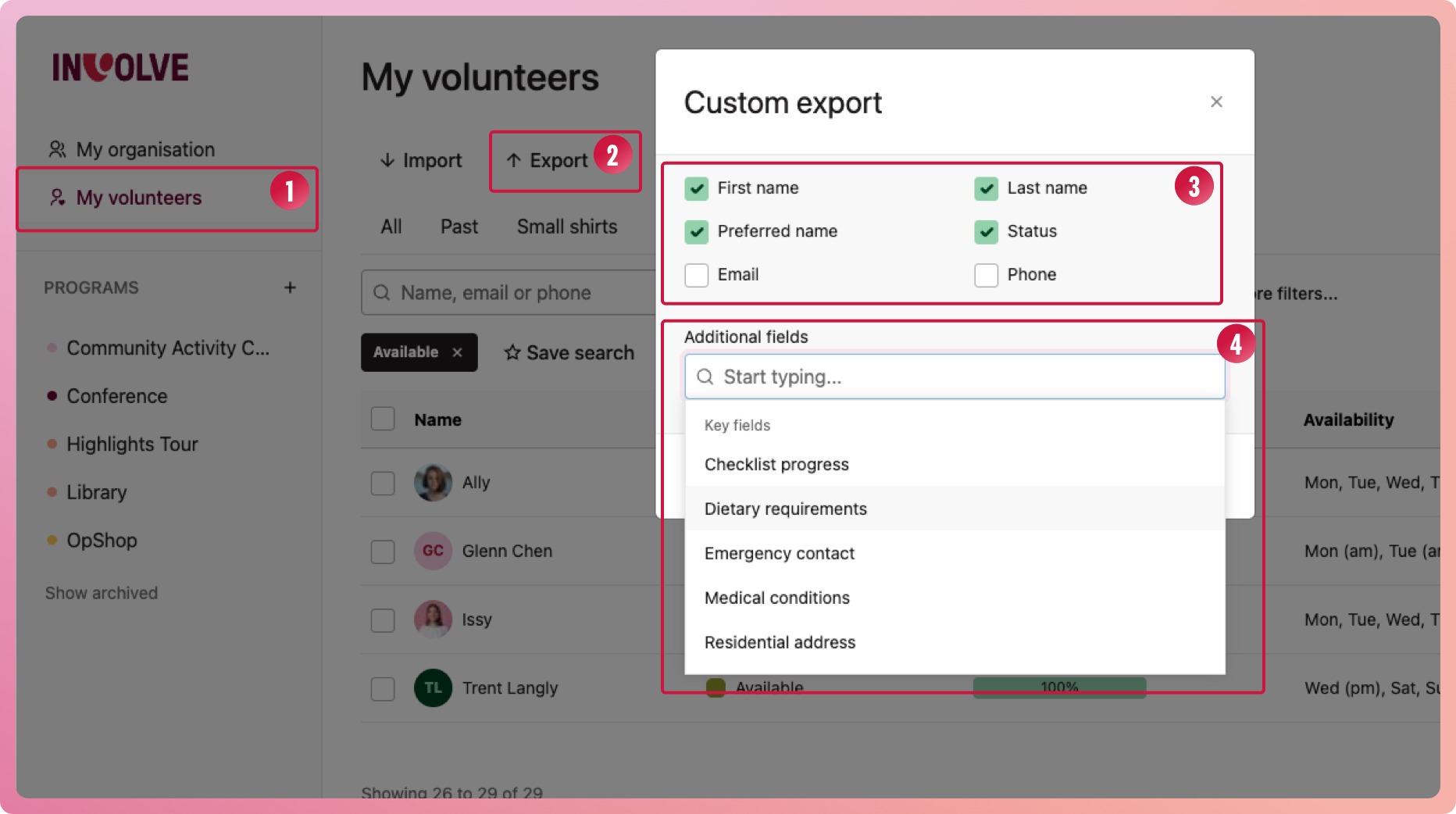
- Navigate to your list of volunteers (My Volunteers or program volunteers)
- Filter your list of volunteers (here is how if you're not sure) to what you need, and then select the Export button
- In the Custom export modal, select from the basic information. At least one of these must be selected
- In the additional fields input, search for the information you need. It will have everything from your volunteer profiles, including custom fields. Select as many as you need.
- Select the Generate button
Careful: When exporting volunteer data, it is best practice to select only the fields you need and to think twice before exporting personal details such as email addresses and dates of birth.
Keeping exports as small as possible helps protect volunteer privacy and reduces the risk of sensitive information being shared inadvertently.
How to find your export
Depending on the complexity, you will either download your report after it's generated or it will be emailed later.
Small reports:
Download these immediately to your browser's default download location (usually your Downloads folder). Check your browser's download history if you don't see it.
Large reports:
These are generated in the background and are emailed to you once complete. After generating, you'll see a message in the export modal indicating it's being prepared.
Once it is ready, you will receive an email with a secure download link. Check your inbox and your spam/junk folder for an email from INVOLVE.
Can't find your report?
- Check your Downloads folder and your download history
- Check your Inbox and junk/spam
- Try the export again, paying attention to the modal content
- Contact us if you continue having a problem
How to see your browser's download history
- Open Chrome.
- Click the three dots in the top-right corner.
- Select Downloads.
- To open the file, click its name. To find the file on your computer, click Show in folder.
- Open Edge.
- Click the three dots in the top-right corner.
- Select Downloads.
- Click Open folder to see all downloaded files on your device.
Safari (Mac)
- Open Safari.
- Click the Show Downloads button (a downward arrow) near the top-right of the window.
- Click the magnifying glass next to a file to find it on your computer.