
Add a volunteer application form
Create and publish an application form to recruit new volunteers. The applications will land in a My candidates pool, ready for you to begin processing.
First, create a pool
- Navigate to My candidates
- Select the Create pool button
- When the modal appears, add a name and optionally select a fun icon and colour
- Select the Save button at the bottom of the modal to finalise
How to create the application form
- Navigate to My candidates and select the pool
- Select the Application form tab, then select Create an application form
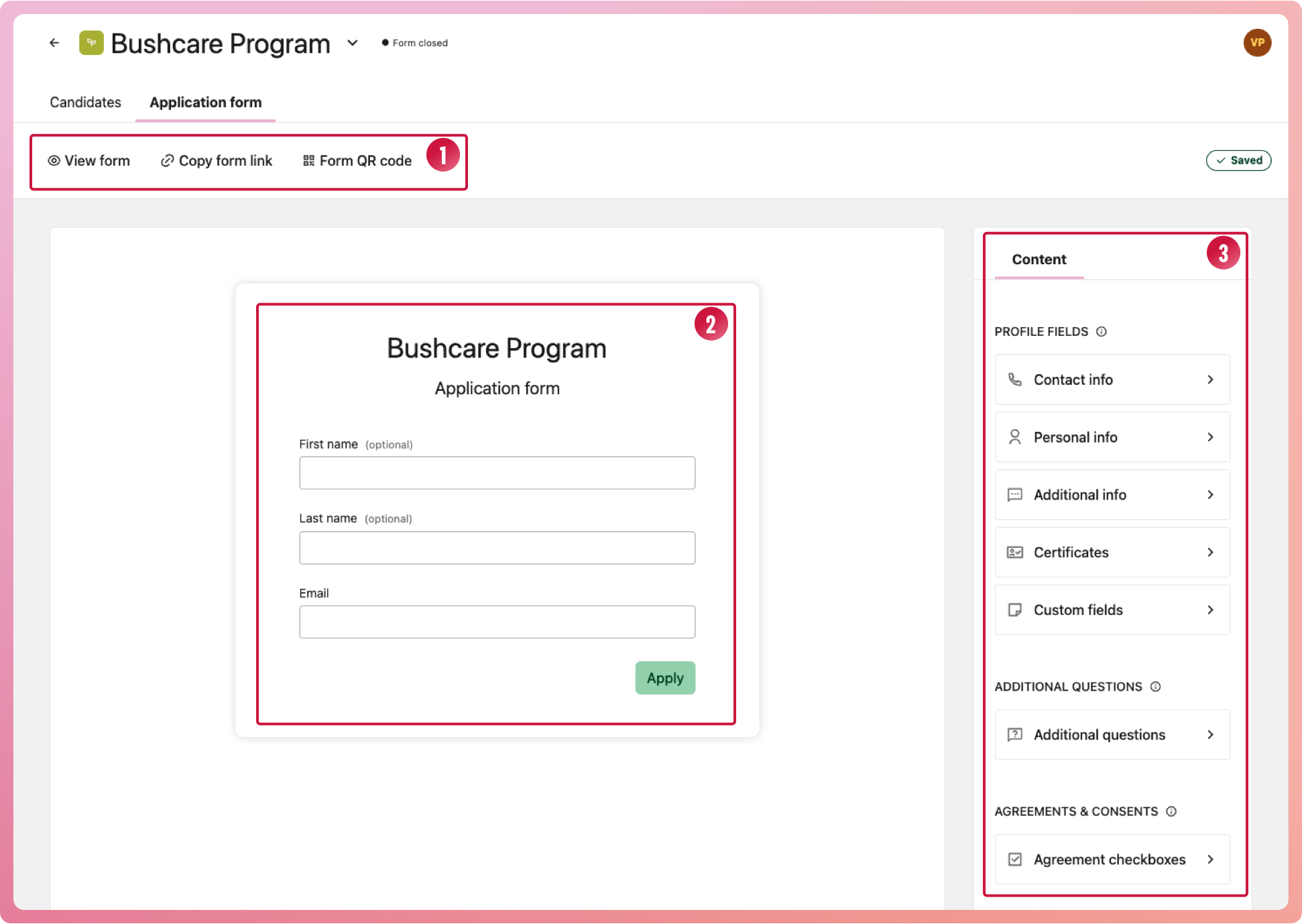
- You will now have a basic form (2), along with a list of additional questions under a content tab(3)
- To view or copy links to your form, select an option from the toolbar (1)
To add profile fields
These fields map directly to your volunteer profile if the candidate is approved, removing any double-handling of information
- From the intake form page, select one of the profile field headings to reveal the question options
- Turn on the information you require
- Repeat until you have everything you need
To add additional questions
Sometimes you may need to ask additional questions relating to their application, for example: tell us about your volunteering experience'. These answers will only appear in their application. When approved as a volunteer, you can keep these application answers if you wish to.
- Select Create a question
- When the modal appears, enter the question type and text. The type refers to how the volunteer will answer the question; see the table below.
- When finished, select the Create button at the bottom of the modal
- Switch on the question to add it to the form
| Type | What it is | Example question |
|---|---|---|
| Single-select | Add in any number of options, and a volunteer can only pick one | What t-shirt size are you? |
| Date | Date selection | What date can you start? |
| Number | Only numbers are accepted | Add your membership number |
| Multi-select | Add in any number of options, and a volunteer can select multiple answers | What programs are you interested in? |
| Tags | Similar to multi-select, but displayed differently. | Which university are you attending? |
| Text | Free text box | How did you hear about us? |
To add an agreement checkbox
For example, 'you agree to our privacy policy' or 'you acknowledge by applying that...'
- Select Create an agreement checkbox
- When the modal appears, add the content of the agreement
- Optionally, highlight the text that will be a link, select the link icon and choose a file
- When finished, select the Create button at the bottom of the modal
- Switch on the question to add it to the form
Tip: you can customise each question by changing the labels, adding help text or making it mandatory or optional for the applicant to answer.
To remove questions
- On the form display, select the question you would like removed
- Select the bin icon
Or switch off the question on the right as you did when adding
Lastly, put it live
Once you are happy with the form. You can reorder or edit the questions; learn how to here. You can publish it
- Navigate to My candidates and select the pool
- Select the Application form tab
- Next to the form, select the Settings tab
- Select the status and choose 'open'
- Select the view form link to take a look at your form
Copy the link or generate a QR code to use on printed material.