
Customise your application form questions
Once you have added questions to your form, you can customise the text displayed on each form field, the submit button and the headings.
How to edit the label (the question)
- Select the field on the form; this will put it into its edit mode
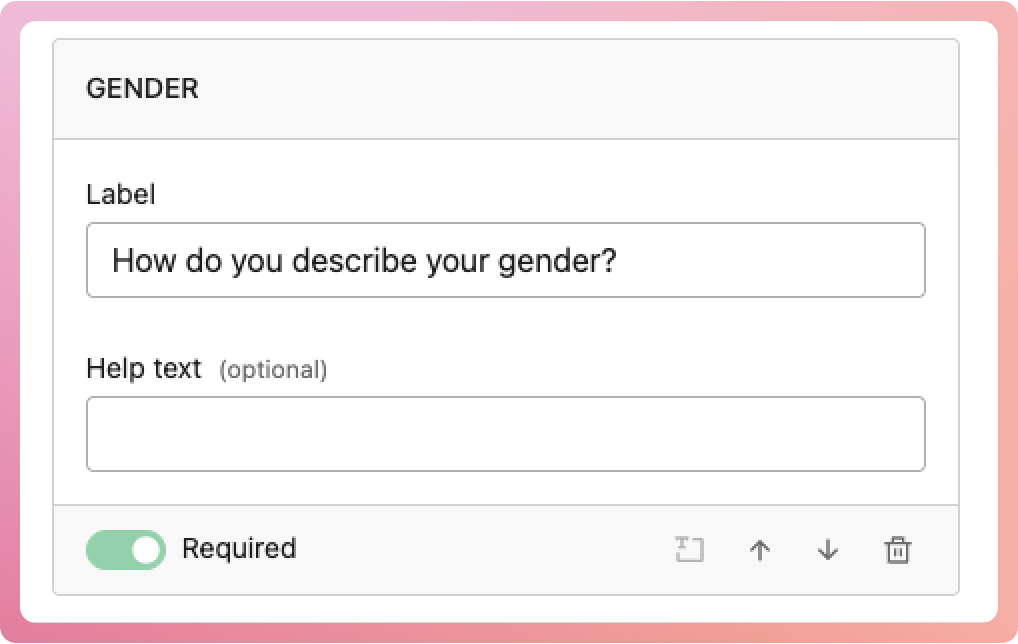
- In the label box, type in your question. For example, instead of "Gender" you can write "How do you describe your gender?"
-
Select outside of the box to exit its edit mode
How to make the question optional or mandatory to answer
- Select the field on the form; this will put it into its edit mode
- In the footer, switch the required switch on to make it mandatory, or off to make it optional. Optional text will automatically be appended to the label to indicate that it does not have to be answered
- Select outside of the box to exit its edit mode
How to add help text
- Select the field on the form; this will put it into its edit mode
- In the footer, select the help text icon. This will add the help text field below the label
- Type in your help text. For example, for medical conditions, you could add the help text "Do you have any medical conditions (including allergies) we should be aware of? If yes, please provide details."
- Select outside of the box to exit its edit mode
Note: when adding help text for questions with checkboxes (multi-select), you can optionally add help text underneath each item
Edit the order of your fields
- Make sure you are no longer in a field's edit mode
- Click and drag the questions up or down to your desired order
or
- Select the field on the form; this will put it into its edit mode
- In the footer, select the up or down arrows to move the field
- Select outside of the box to exit its edit mode