
Navigating around INVOLVE
INVOLVE is an online app designed to help organisations of any size manage their volunteers and volunteering programs. We aim to make managing volunteers easier so you can focus more on helping the community.
The INVOLVE interface

We have four main areas that most pages are split into:
- Navbar - Access your organisation, volunteers and program sections from here; more on this below
- Header - Holds the sub-navigation of the section you are currently viewing and provides access to your account settings
- Toolbar - Contains actions to import, export or add to the data in the Main Pane
- Main pane - Lists the data of the section you are currently viewing, along with actions to manipulate it
The Navbar

The Navbar will give you access to the main sections of INVOLVE:
- My Organisation - details and settings of the organisation and staff can be found here, along with billing
- My Candidates - build a pool of potential volunteers and manage your own intake forms
- My Volunteers - all volunteers within the organisation are listed and can be managed here
- The Programs - each program is managed in its own section
Each section has a sub-navigation or action bar in the header. We'll explore the sections next.
Note: Certain staff roles cannot access all sections; find out more when adding staff.
My Organisation Section
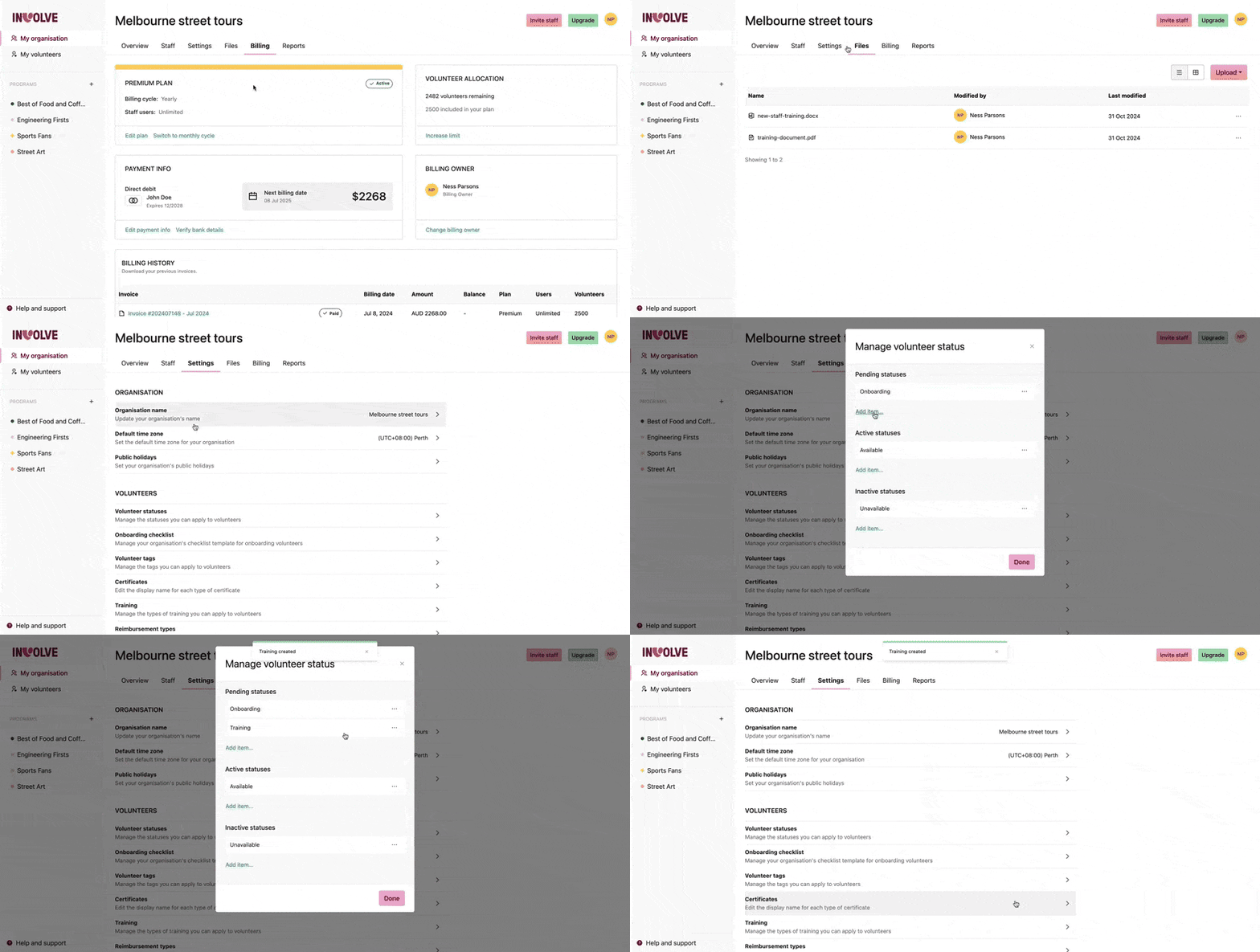
My Organisation contains details and organisational settings, such as the default time zone and the onboarding checklist template. It is also where staff are added, important files can be stored, and organisation-wide reporting can be accessed. The Billing Owner will also be able to manage the organisation's INVOLVE subscription details.
Note: The My Organisation section is accessible only to staff who have been assigned the Organisation Administrator role or are the Billing Owner.
My Volunteers section
My Volunteers contains your organisation's volunteers. Here, you can add, filter, group, and view or edit individual volunteers.

- Import and Export: Upload a CSV and match the data in our import modal. Likewise, you can export all or even a subset of your volunteers (e.g., all those currently onboarding)
- Create a volunteer: Individually add a new volunteer record
- Groups: View all, past or customise a new group by filtering and saving (e.g., Onboarding volunteers), and any new volunteers who match will be automatically added
- Filter volunteers: Search keywords or filter your volunteers by location, status, skills and more
- Volunteer list: Here is the list of volunteers by name, with additional columns you can customise. Selecting the volunteer's name will bring up their full record
- Customise: Where you can turn on and off additional columns in your volunteer list
Note: The My Volunteers section is only accessible to staff assigned the roles of Organisation Administrator, Volunteer Manager, or Billing Owner.
My Program section

Each program contains a sub-group of your organisation's volunteers, schedule, and reports.
- Program settings dropdown: Edit program details and manage roles and activities.
- Assigned staff: Which staff have been assigned to manage this program
- Sub navigation: access the different program views, including the list of volunteers assigned to this program, the program schedule, timesheets, files, reimbursements, recognitions, reports and messages sent out to volunteers.
- Schedule toolbar: Email the schedule to volunteers, see requested shifts and access the clock-on tool
- Schedule view and navigation: You can view the schedule by day, week, or month.
- Create shift: create a new shift on the schedule
- Schedule - highlights the current day, greys out any public holidays and days volunteers have indicated they are not available.
Note: Program Coordinators must be assigned to the program to view it.