Set custom fields
Custom fields are a way to add more information about your volunteers that we may not have thought about. Or adding information front and centre that is important to your organisation or program. Setting a custom field refers to the action of 'setting the information' for the volunteer. Creating or editing a custom field involves managing which options are available for that field.
Note: Only Essentials and Premium plans have access to custom fields
Where to find and set custom fields
Custom fields are used to store information about the volunteer, so you will find this on their record. There are two levels of custom fields: one that is organisation-wide (all volunteers in the organisation will display them) and the other is specific to a program (only volunteers within the program will display these custom fields).
Organisation-wide custom fields
- Navigate to My Volunteers
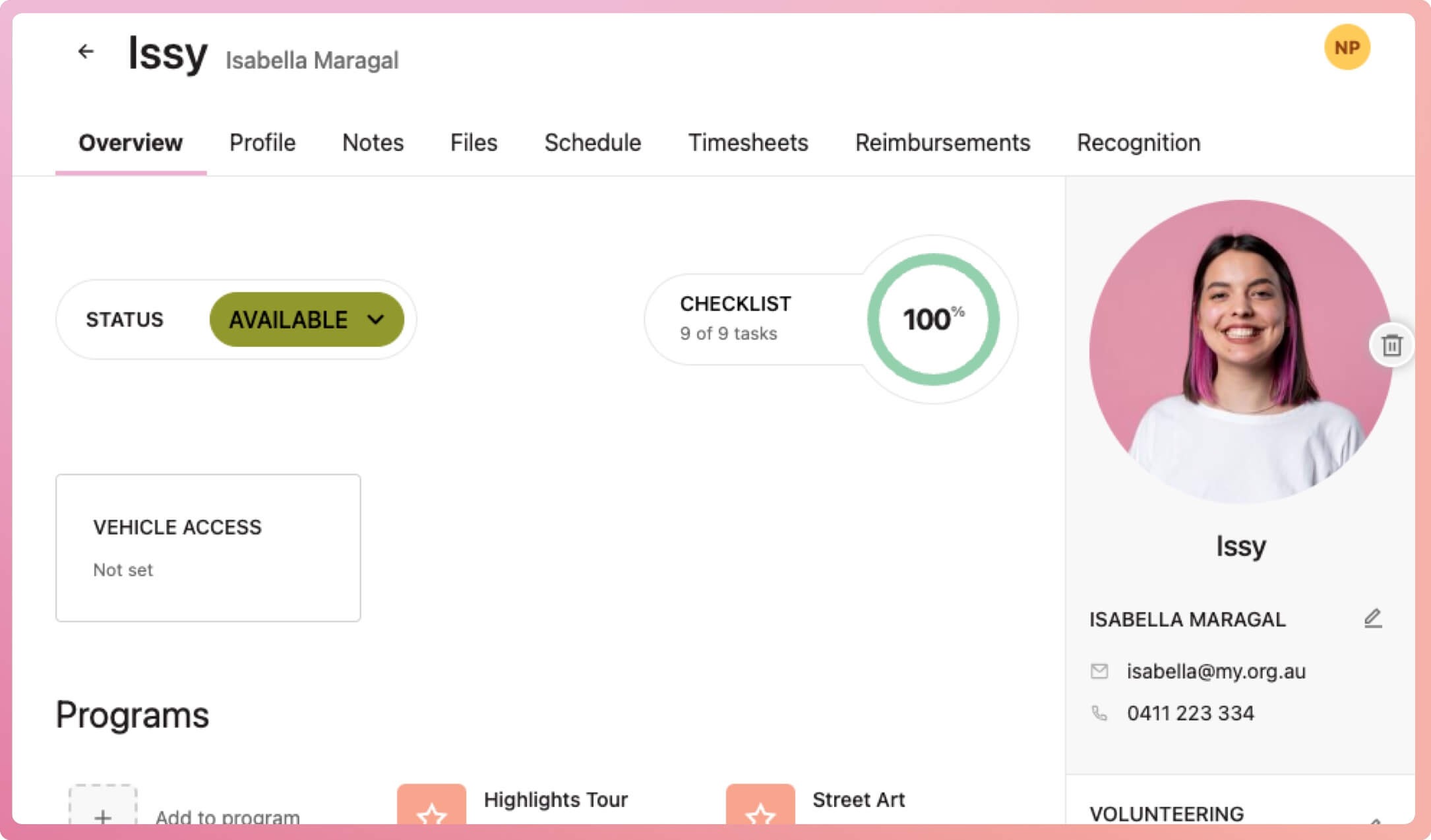
- Select a volunteer and look at their status below. If there are additional boxes before the Programs heading, these are the custom fields unique to your organisation
- Select the box that will bring up the Set custom field modal, and input the information required
- Select the Save button at the bottom of the modal to finalise
Set an organisation-wide custom field from a program
You can set an organisation-wide custom field from a program.
- Navigate to a program
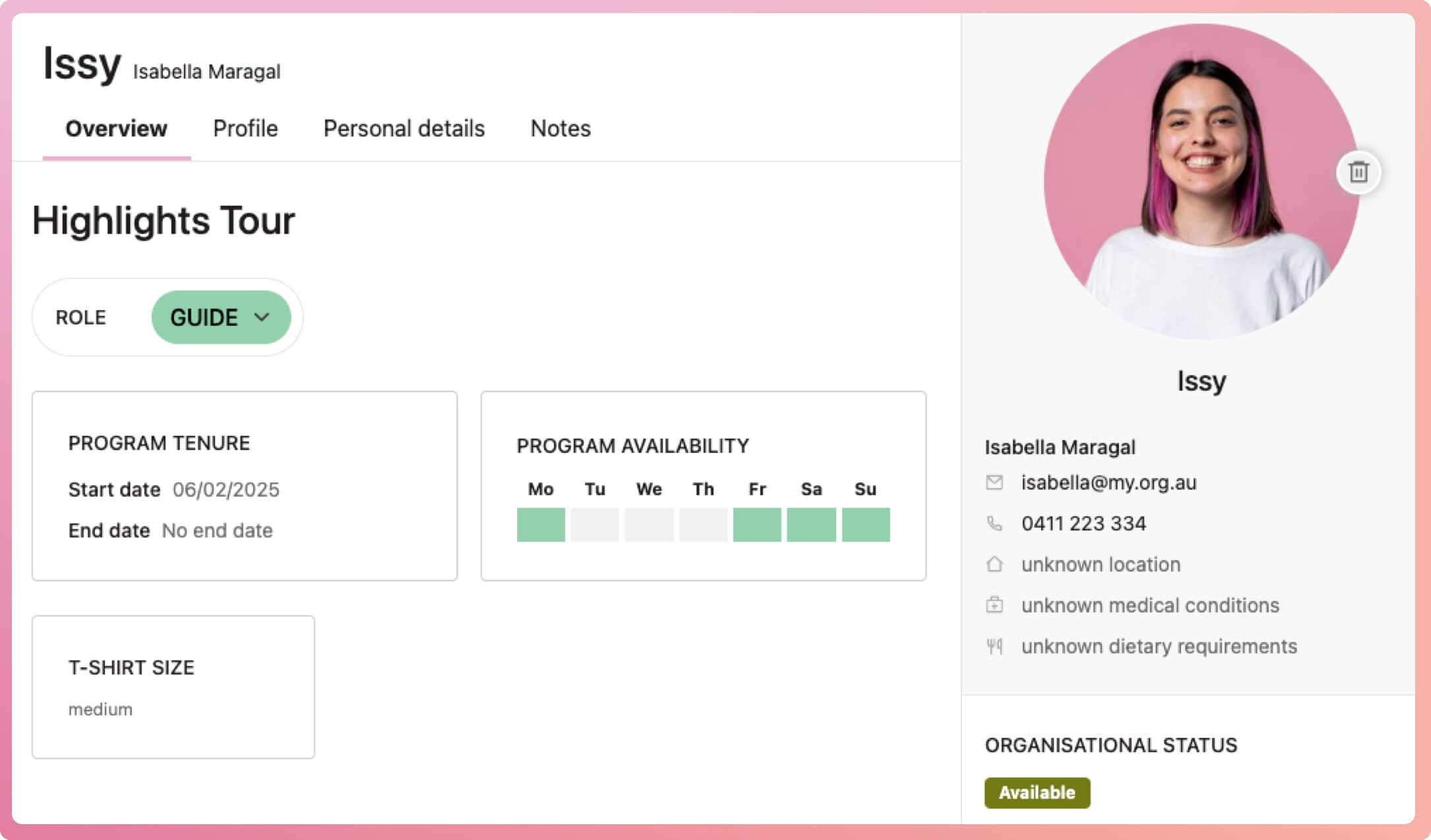
- Select a volunteer, then look below their Organisational status and at the checklist on the right-hand side of the Overview tab. If there are additional headings, these are the custom fields unique to your organisation
- Select the custom field which will bring up the Set custom field modal, and input the information required
- Select the Save button at the bottom of the modal to finalise
Program-specific custom fields
Setting a program custom field can only be done from that program.
- Navigate to the program
- Select a volunteer and look below their Program tenure and Availability on the Overview tab. If there are additional boxes before the Timeline, these are the custom fields unique to this program
- Select the box that will bring up the Set custom field modal, and input the information required
- Select the Save button at the bottom of the modal to finalise