Search by custom fields
Custom fields are a way to add more information on your volunteers that we may not have thought about. Or adding information front and centre that is important to your program. For example: t-shirt sizes, birthdays, certain certificates etc. If you have not added any custom fields, learn how.
Note: Only Essentials and Premium plans have access to custom fields
How to search or filter by your custom fields
-
Navigate to My Volunteers or navigate to a program's Volunteers tab
-
Select the 'More filters...' button located next to the search box above the volunteer list
-
When the slide-out appears select the custom field and enter one or more criteria in the search box
-
Select the 'apply filters' button. The results will depend on the type of custom field it was:
|
Single-select, Date or Number |
results will show/exclude volunteers who have an exact match to at least one of the criteria searched. |
|
Multi-select or Tags |
results will show/exclude volunteers who have all of the criteria searched. |
|
Text |
results will show/exclude volunteers who have one or more of the keywords searched. |
Examples
To illustrate how each type of custom field is filtered, we'll add 'T-shirt size' as a single select, multi-select and as a text field so we can see the different search results.
Single-select
This makes the most sense in this case as people are usually just one size. We will create a custom field with options: small, medium, and large. Each volunteer will only be set one of these options.
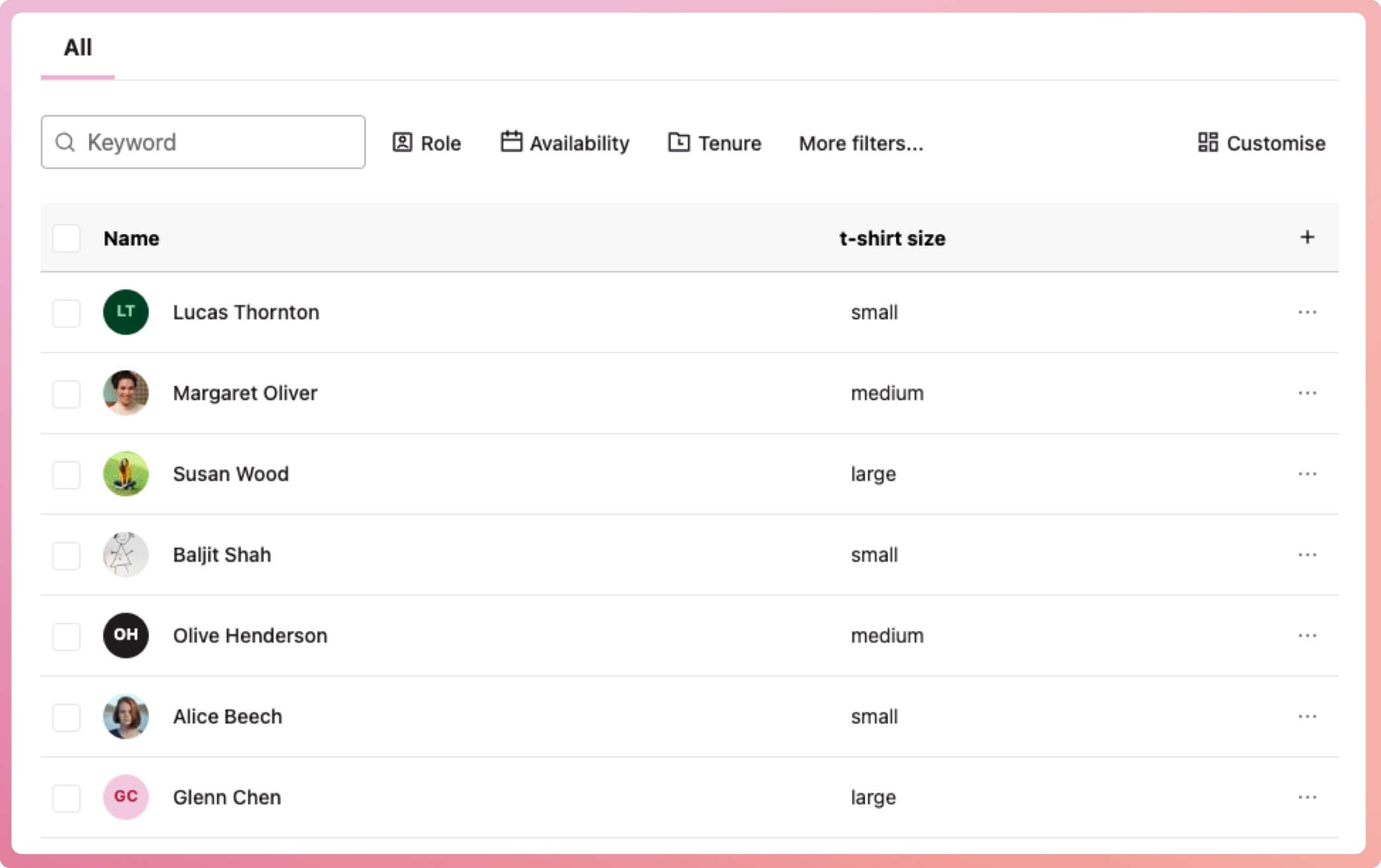
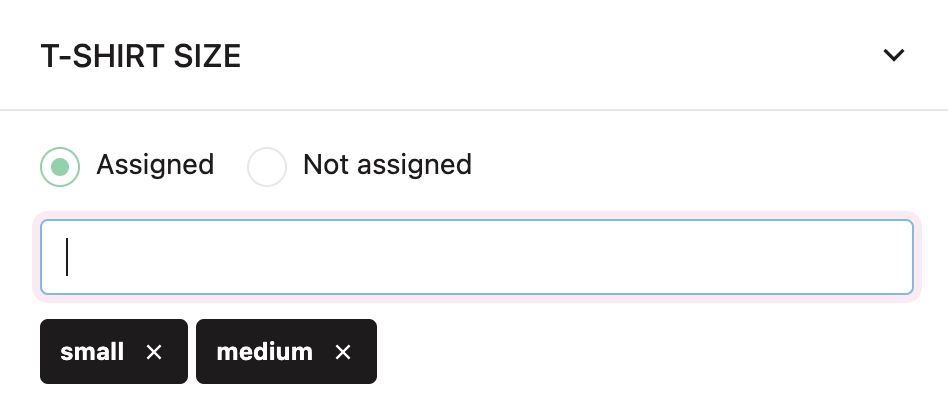
We want a list of volunteers who are either small or medium so when we filter our list of volunteers, we can filter by the below criteria:
The results will show all volunteers with small OR medium.
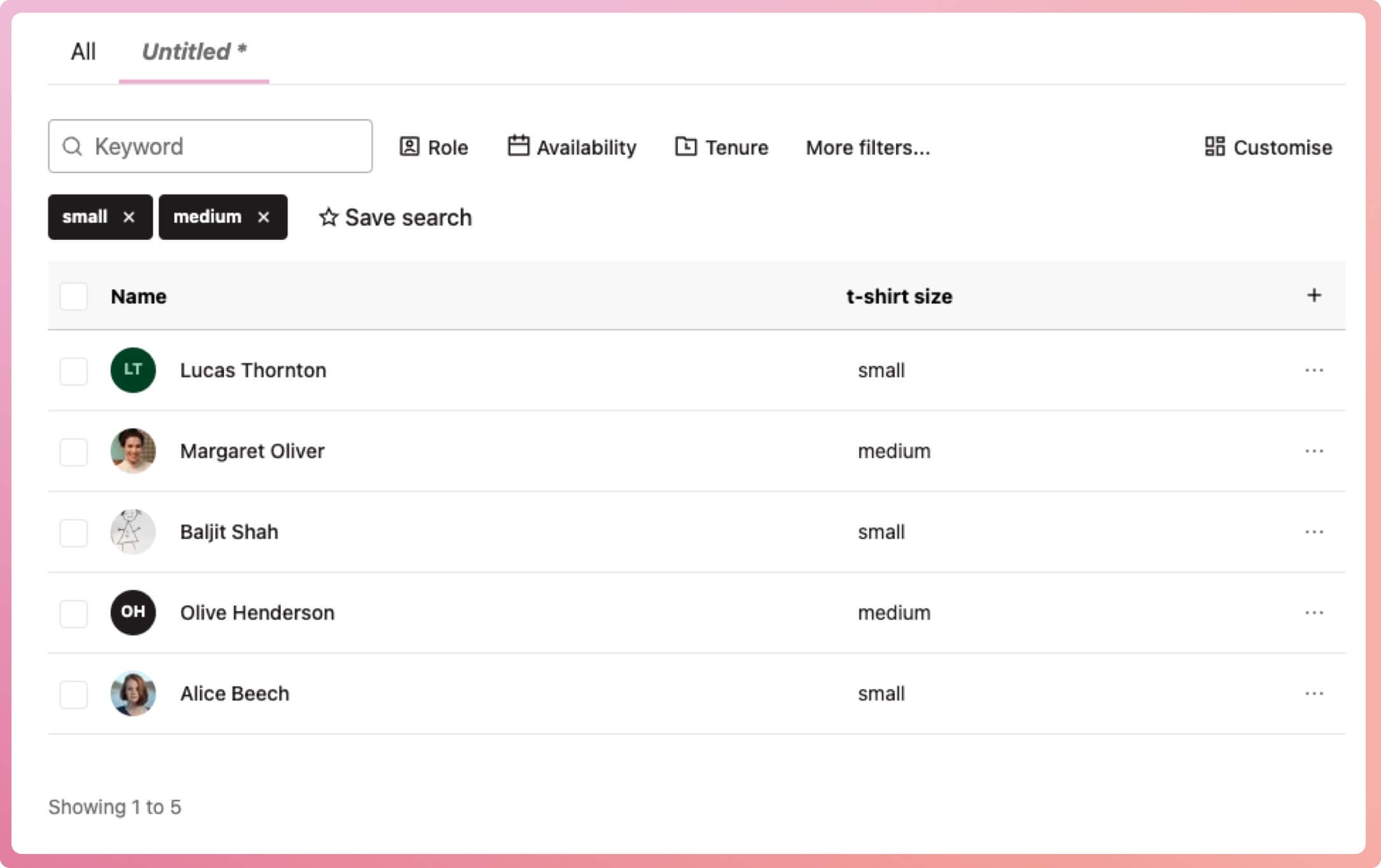
⭐ Tip: In this case, as there were only three options, we could also achieve the same results from filtering: 'not assigned' large.
Date and Number custom fields also filter like the single-select as only one option is allowed to be set.
Multi-select (or tags)
These fields allow you to set multiple pre-defined options. Using the same example options as before (small, medium and large) but this time we can set more than one option for each volunteer:
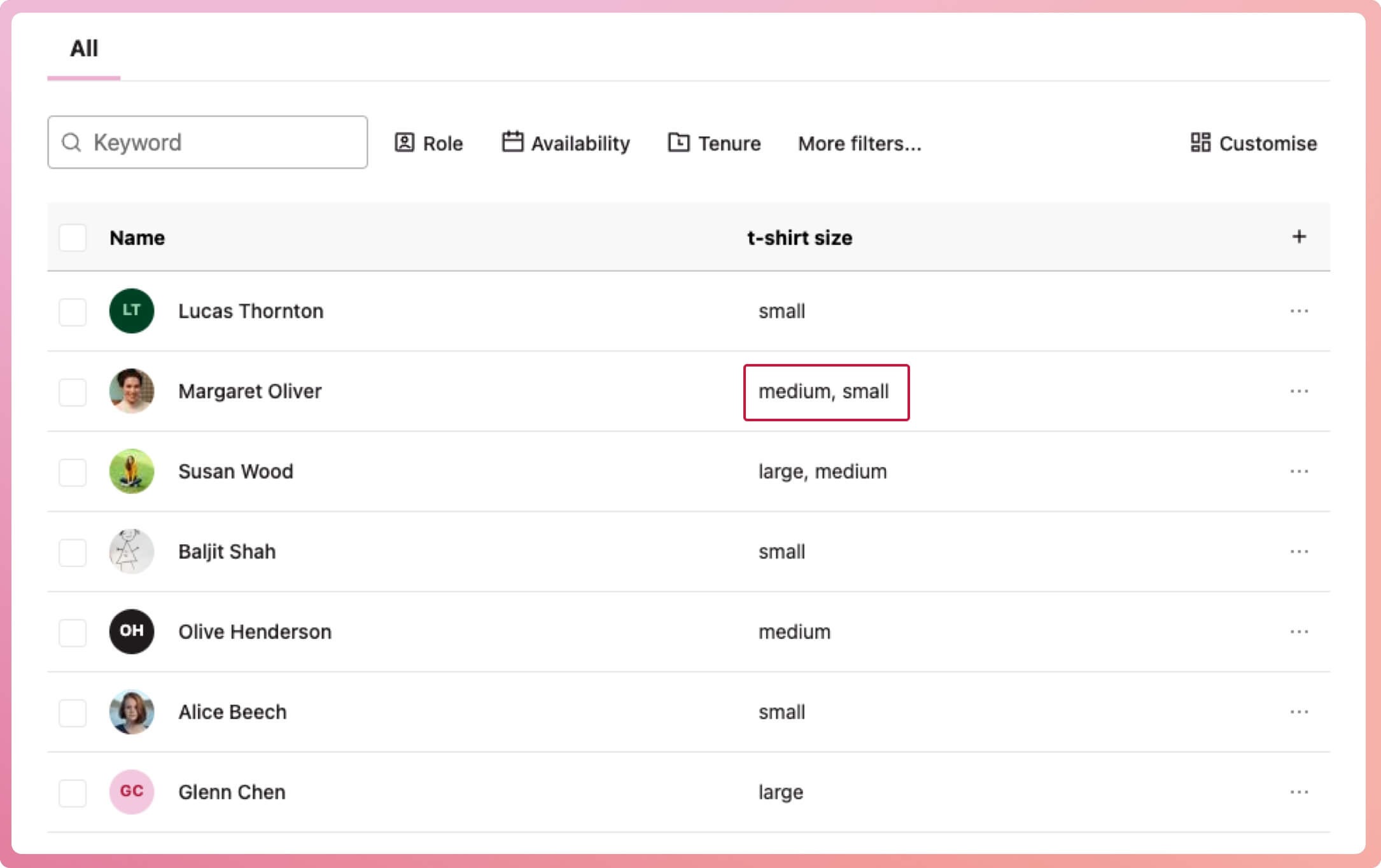
If we filter the same criteria we will show all volunteers with small AND medium. In our example above, just Margaret will show in the filtered results as she is the only volunteer with the options medium and small set.
⭐ Tip: For us to achieve our list of all small and medium shirt sizes in this case, we would filter: 'not assigned' large.
Tags also filter like the multi-select as multiple options are allowed to be set.
Text
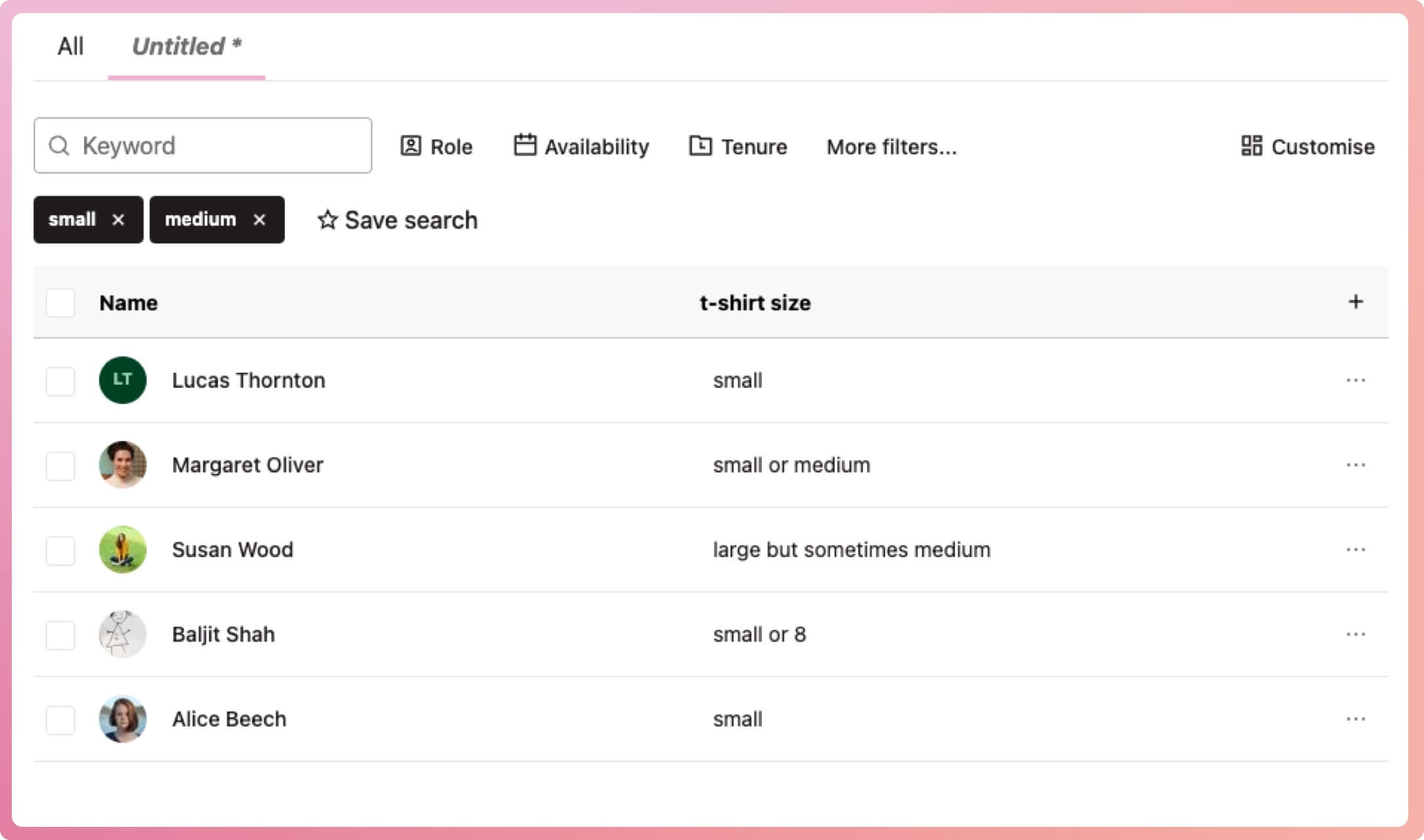
This field allows you to have various values as you simply type to set. In our example, it could be challenging as some staff may enter 'medium' and others 'size 12'. Text custom fields may be better suited for entering information where there are too many options to list and choose from - like coffee preferences. We will still run the example:
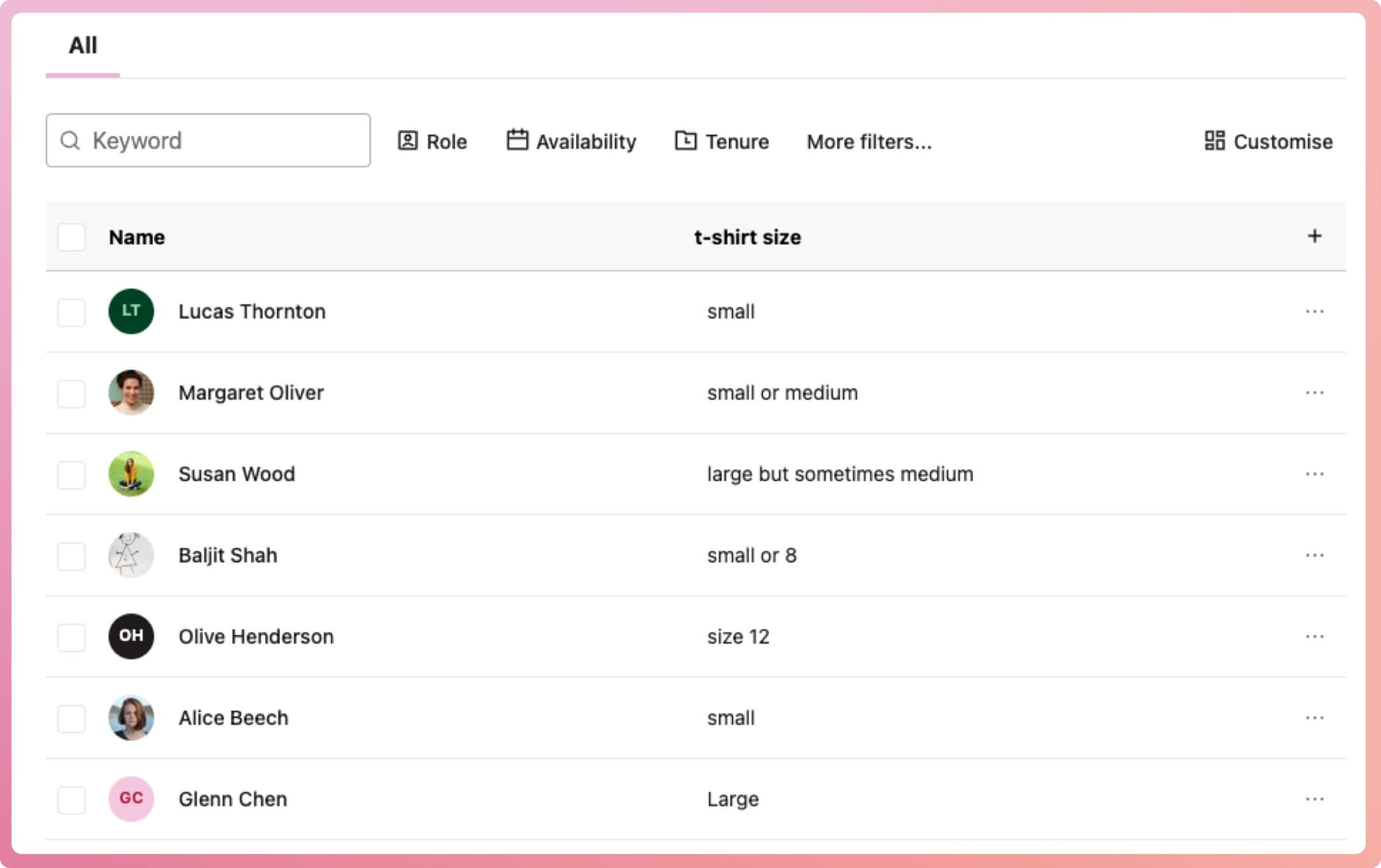
When we filter the text for keywords, small and medium again, the results will show all volunteers with AT LEAST ONE of these keywords.