
Adding tags to your volunteer profiles
Tags allow you to add your own searchable keywords to your volunteers. Use them to surface key information you need to organise your volunteers.
Add or edit tags from your volunteer list
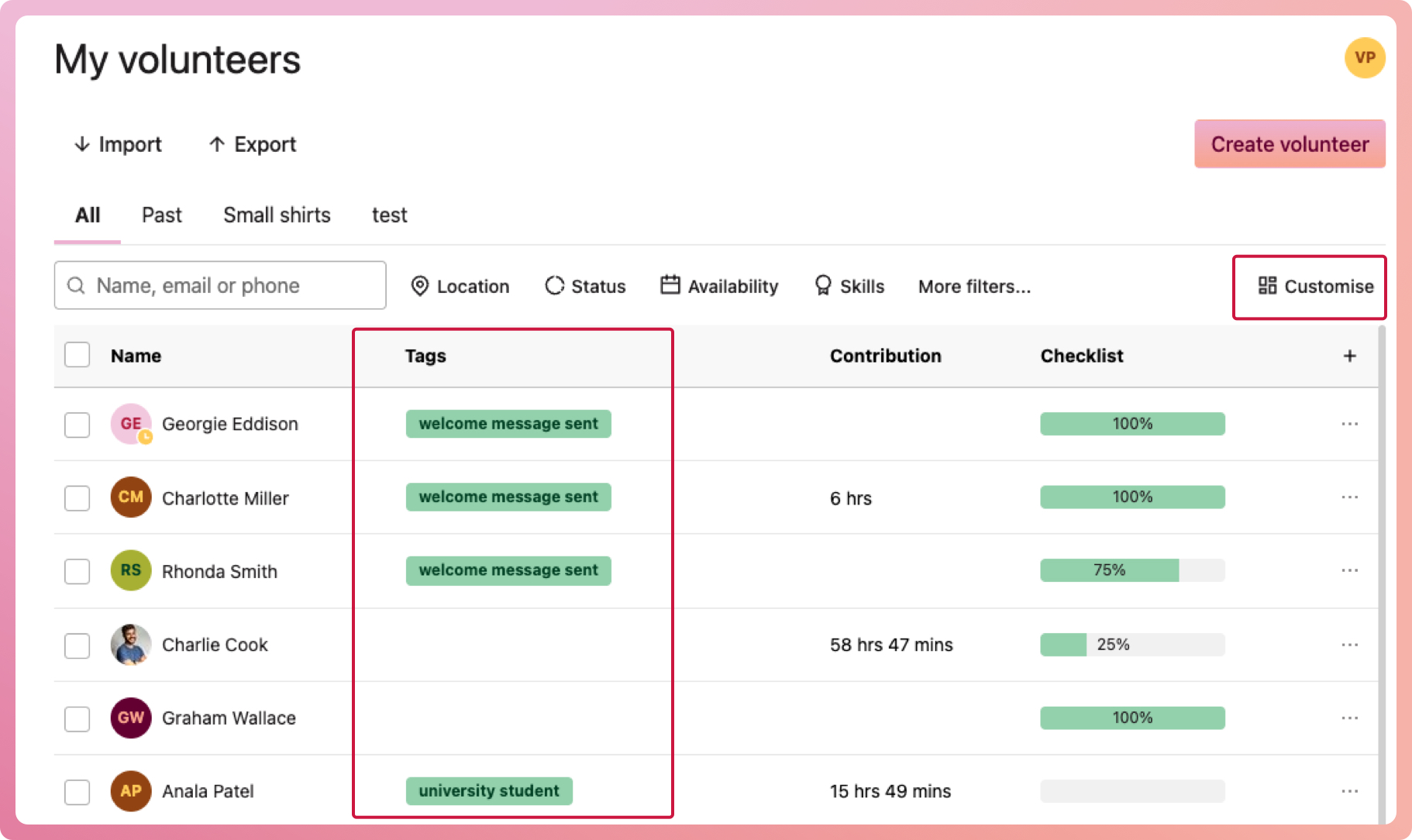
- Navigate to My Volunteers or your Program volunteers and select the Customise button
- When the slide-out appears, turn on the 'tags' switch, then close the slide-out
- You should now see the tags column; select the tag cell to add or remove tags
How to filter volunteers by tags
- Navigate to My Volunteers or your Program volunteers and select the More filters... button, which is located next to the search box above the volunteer list
- When the slide-out appears, select Tags, then filter by either tagged or not tagged, and enter one or more of your tags in the search box.
- Select the Apply filters button. The results will show volunteers who have (or do not have) at least one of the entries searched.
How to manage your tags
Tags can become bloated quickly; keep them tidy by managing them in settings. You will need to have access to My organisation to do this.
- Navigate to My organisation and select the Settings tab
- Scroll down and select Volunteer tags
- When the modal appears, you can rename or delete any of your current tags. If you choose to delete a tag that has been applied to one or more volunteers, you will be prompted to either remove the tag or change it to one of your current tags.
You can also add new tags from this modal.