
Add a certificate to a volunteer's profile
The certificate area is a powerful feature in INVOLVE because the dates you add against your certificate will be tracked, alerting you when renewals are due. To add a certificate:
- From the list of volunteers (either your organisation's volunteers or program volunteers), select the volunteer to bring up their record.
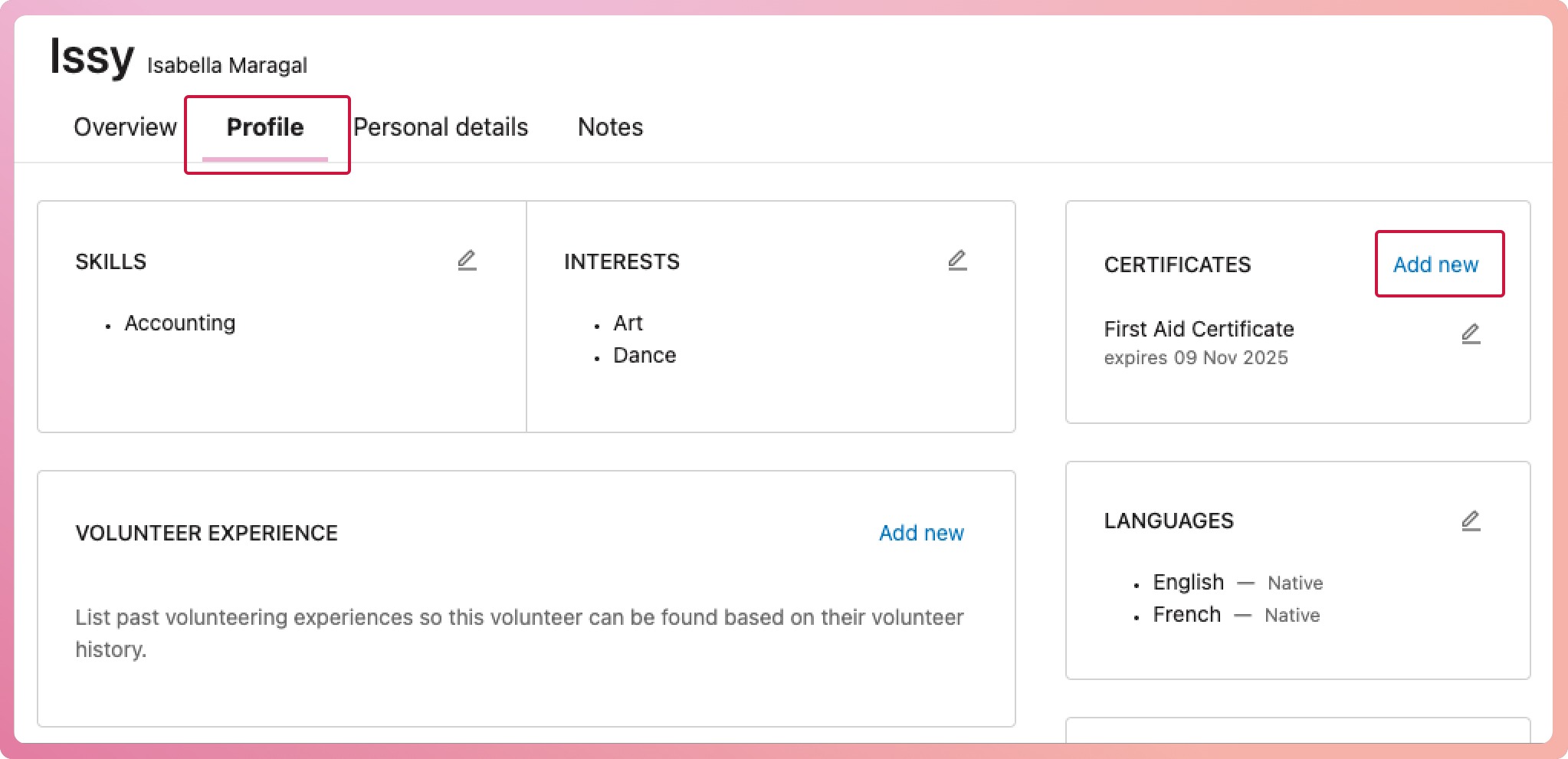
- Navigate to their Profile tab.
- In the Certificate box, select the Add new link to open the certificate modal.
- Select the Certificate type from the options (these will be the default ones, plus any custom-added ones for your organisation)
- Add the certificate expiry or issue date: This will help INVOLVE identify volunteers who need to update their certifications.
- You can include a reference number and/or attach a copy of the certificate, but neither is required.
-
Select the Save button at the bottom of the modal to finalise the certificate addition.
Note: Only one of each certificate type can be added to the volunteer's record.
Storing of certificate files
If you upload a certificate file when adding your volunteer's certificates, it will also appear under the volunteer's files.
- Navigate to My Volunteers
- Search and select the volunteer to bring up their profile
- Select the Files tab to view the volunteer's uploaded certificate.
Older versions of certificates can be viewed from here.
✋🏼 Careful: We recommend not uploading certificate files to increase the security of their personal data. Use the reference field instead to store either the certificate number or where you stored it offline.