
December 2025 release notes
We are on our way to the end of an excellent year for INVOLVE! Here is what was released on 10 December:
✨ New Features
✨ Share Organisation and Program Files Publicly
Need to share important documents, such as a volunteer handbook, with your volunteers? You can toggle organisation and program files to be shared via a public link, allowing people to view the document without logging into INVOLVE.
Have a look:
-
Navigate to the Files tab of a program
-
Select the file to have public sharing, and when the off-canvas slide-out appears, select the edit icon
-
Toggle the Access switch on (green)
-
Select the Save button
-
Select the link icon in the off-canvas slide-out to copy the file URL, then paste it into a message to your volunteer(s).
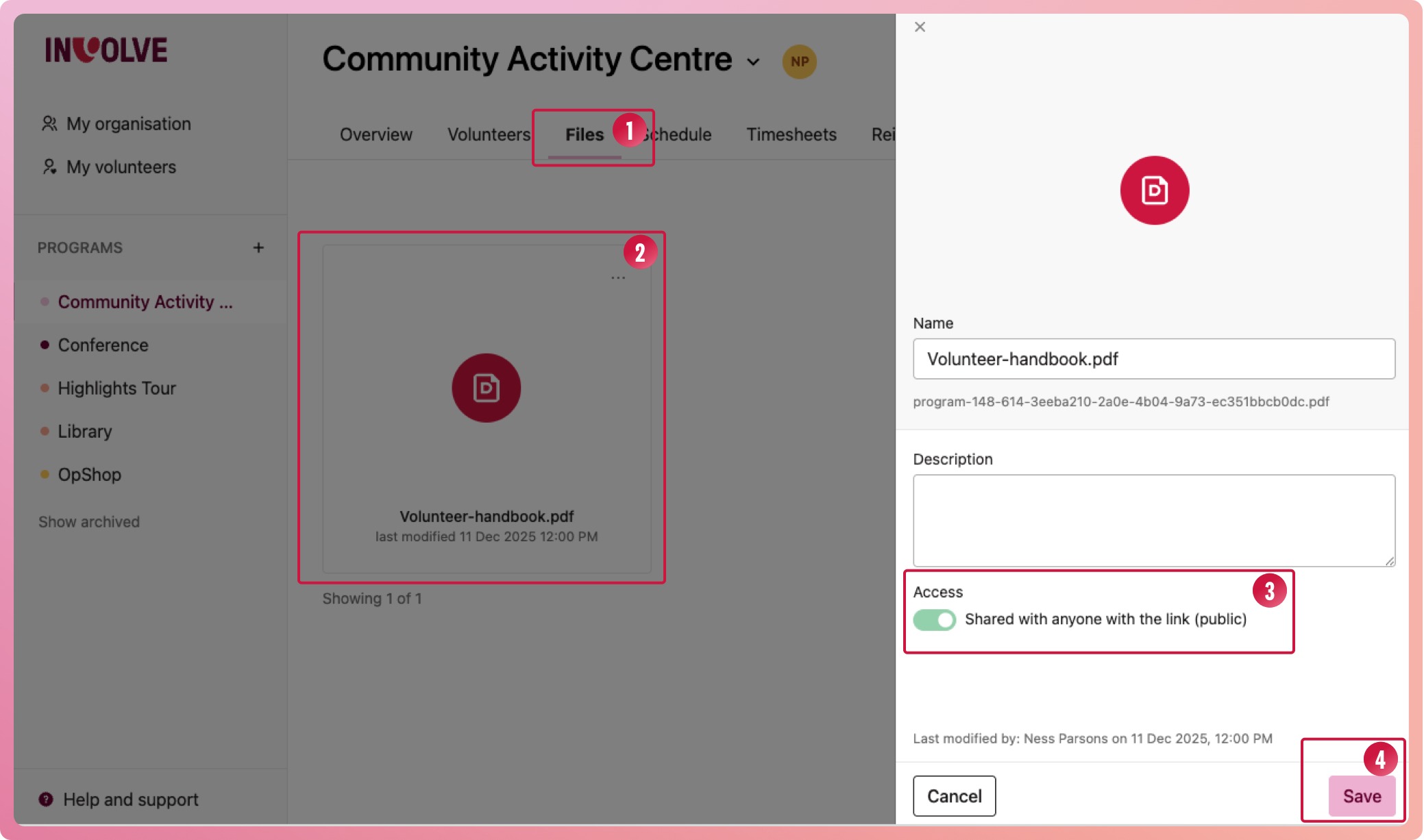
Steps to share a document with people outside INVOLVE who do not have a login (e.g., your volunteers). Can be used for files stored in programs and at the organisation level.
✨ Uploaded File Versioning
Keep track of multiple versions of your files. Ideal for storing updated certificates year after year.
Have a look:
-
Navigate to the Files tab of a program
-
Upload a new file
-
Select the context menu (three-dot icon) in the top right of the file box when in gallery view, or at the end of the row in list view.
-
From the context menu, select Replace file
-
Choose the same or a new file and upload
-
Select the file and in the off-canvas slide out, you can see, download or delete the previous version of the file
🚀 Improvements
Open Shift Request Outcome Notifications
Volunteers will start receiving notifications when their open shift requests are approved or denied. 📖 Learn more about open shift requests here.
Change who the program owner is
By default, the staff member who created a program is the program owner. You can now update the program owner in just a few clicks:
-
Select the program
-
On the Overview tab, locate the program team card and select the staff member who will become the program owner.
-
When the context menu appears, select Set as program owner
👉 Only the current program manager will be able to perform this action
🐛 Bug Fixes
We have resolved several bugs and made behind-the-scenes improvements to keep things running smoothly.